DEMODemonstration data only. This guide does not use any client dossier.
Your starting point
The draft on your iPhone
Rilievo 4.0 is available on the App Store. This walkthrough illustrates version 1.0.1 with demonstration data. Appearance and features may vary with the installed version: check What’s New on the App Store.
Choose a chapter or follow the sequence. Each screen is an authentic app capture using a demonstration example. Enlarge any screenshot to read the details.
DEMO data. Names, assets, notes, assessments, conversations and usage counters are demonstrations and do not describe real clients or checks. Screens are captured from the app in the iPhone simulator; sample photos, nameplates and documents are not evidence of conformity. This guide does not document a real end-to-end cycle with AI providers or Codex Cloud.
First see how to prepare a new assignment and add an asset. Then explore the demonstration workshop with three populated assets, through to the sample appraisal.
01/ 30
Tap to enlarge
01 / 30 · Step 01
Your work starts here
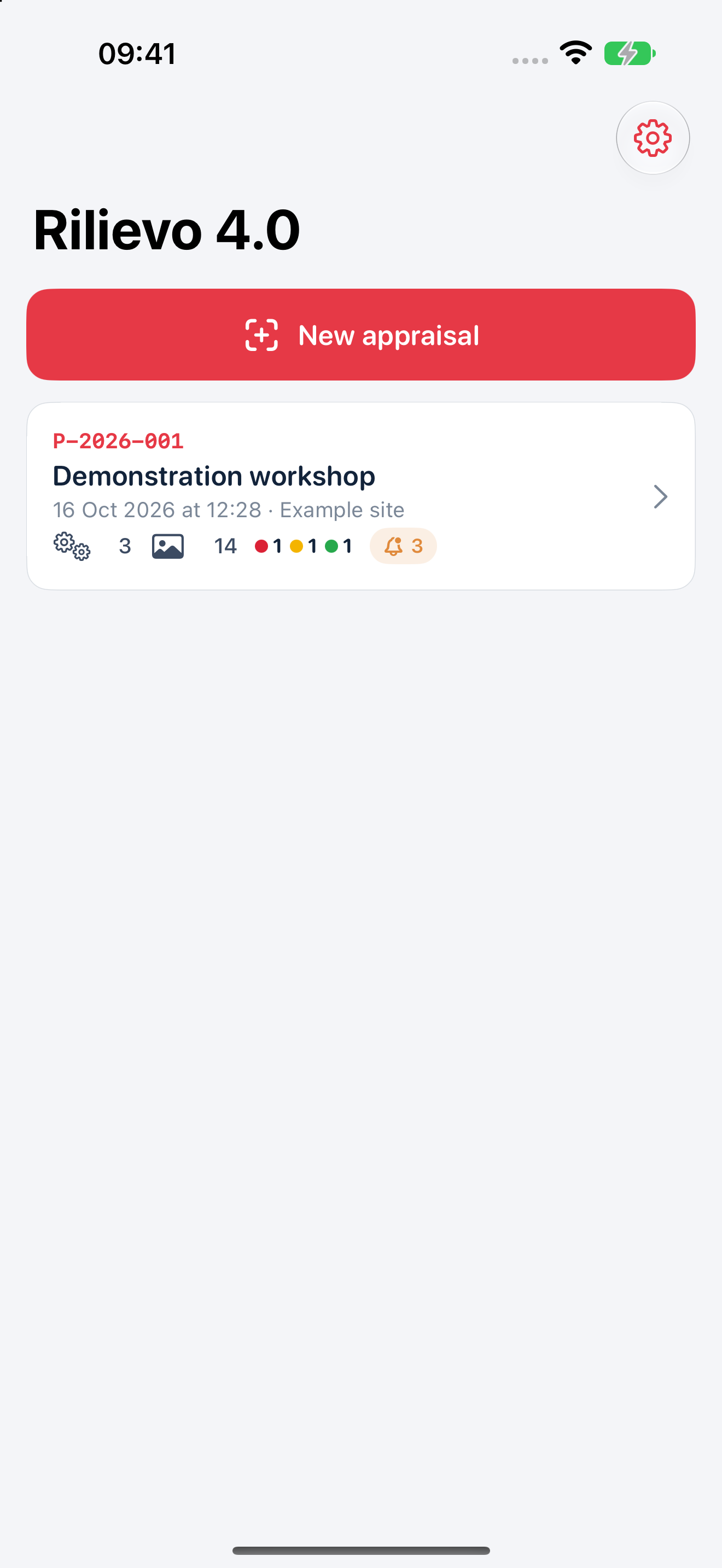
Open Rilievo 4.0. Tap “New appraisal” to begin, or open an existing appraisal to continue working.
Find your assignments and their progress in one list.
What to look for
Identify the demonstration client, appraisal code and content counts.
This walkthrough uses a demonstration workshop, assets and findings only. It does not describe real clients or inspections.
Create a DEMO appraisal.
Tap to enlarge
02 / 30 · Step 02
Name your first assignment
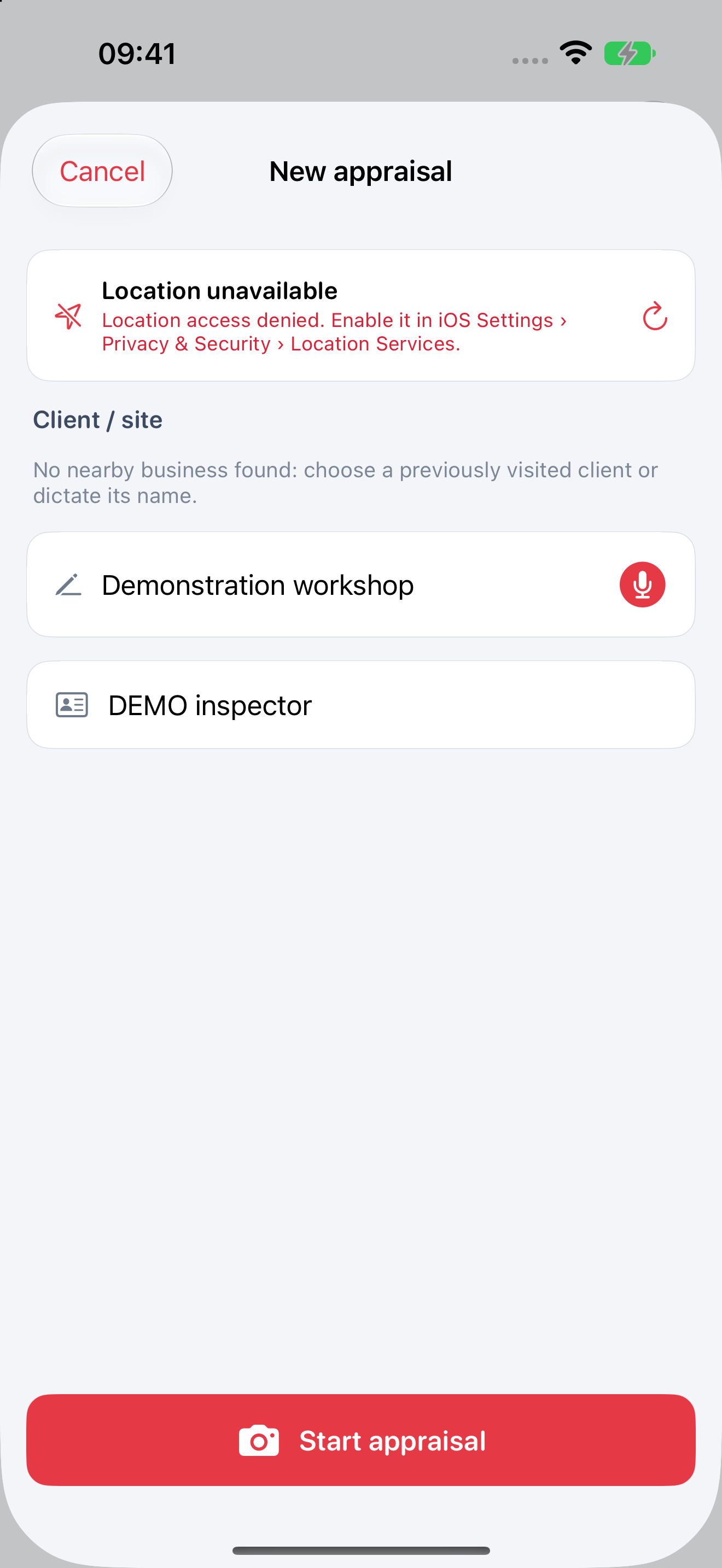
In “New appraisal”, enter “Demonstration workshop”, check the DEMO technician and tap “Start appraisal” when you want to begin your practice case.
Set the context before collecting evidence.
What to look for
The sample client and technician fields are filled, and “Start appraisal” is available.
Location may suggest a nearby business: check and correct it. Use an invented name for this exercise.
Add the first asset.
Tap to enlarge
03 / 30 · Step 03
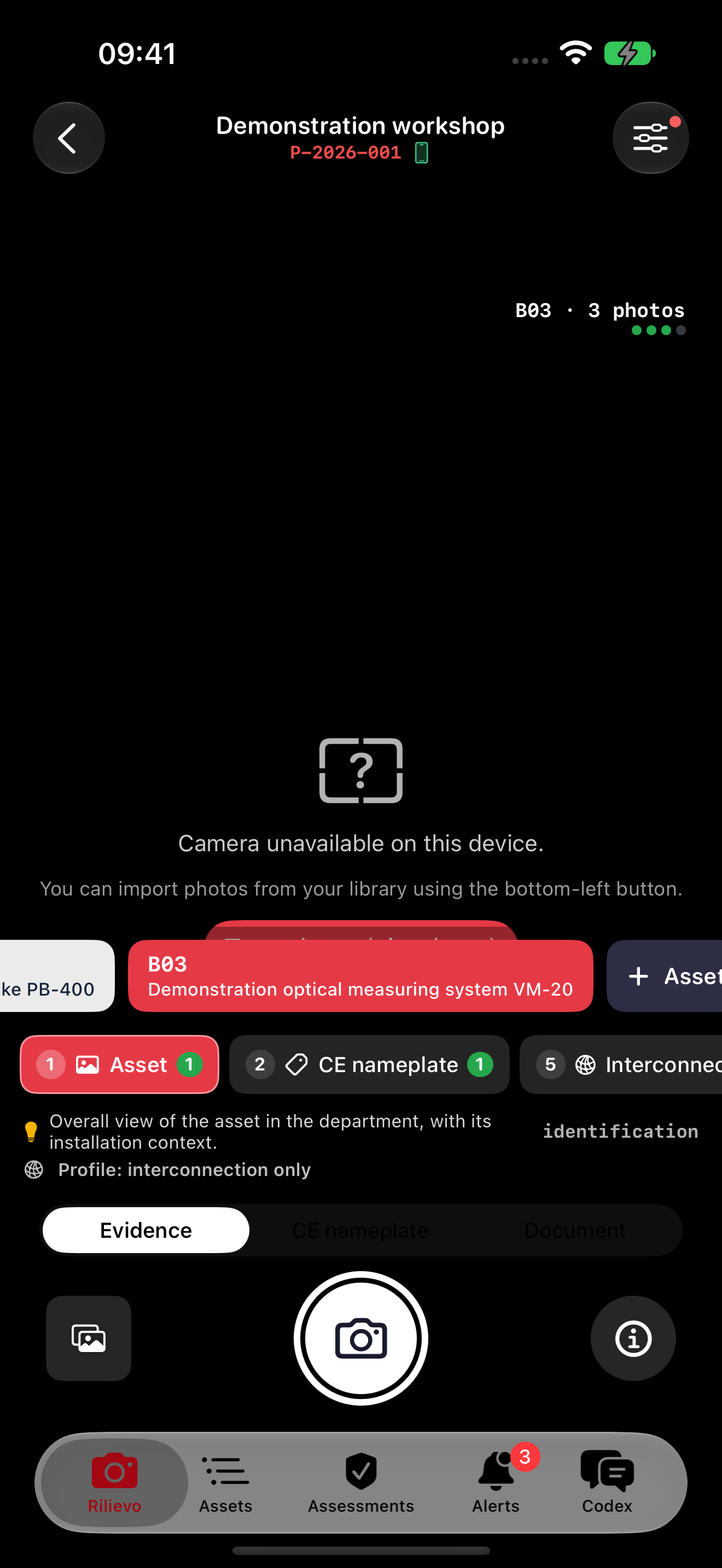
Five tabs, one assignment
The bottom bar has Rilievo, Assets, Assessments, Alerts and Codex. Rilievo is the capture tab; its name stays Italian. Use it to acquire evidence, then organise and review it in the other tabs.
Move from capture to review while keeping the appraisal in context.
What to look for
Check the appraisal at the top and the current asset in the capture view.
Allow camera access on your iPhone. To practise without taking photos on site, import demonstration images.
Tap “+ Asset”, or open Assets.
Tap to enlarge
04 / 30 · Step 04
New asset, a clear reference
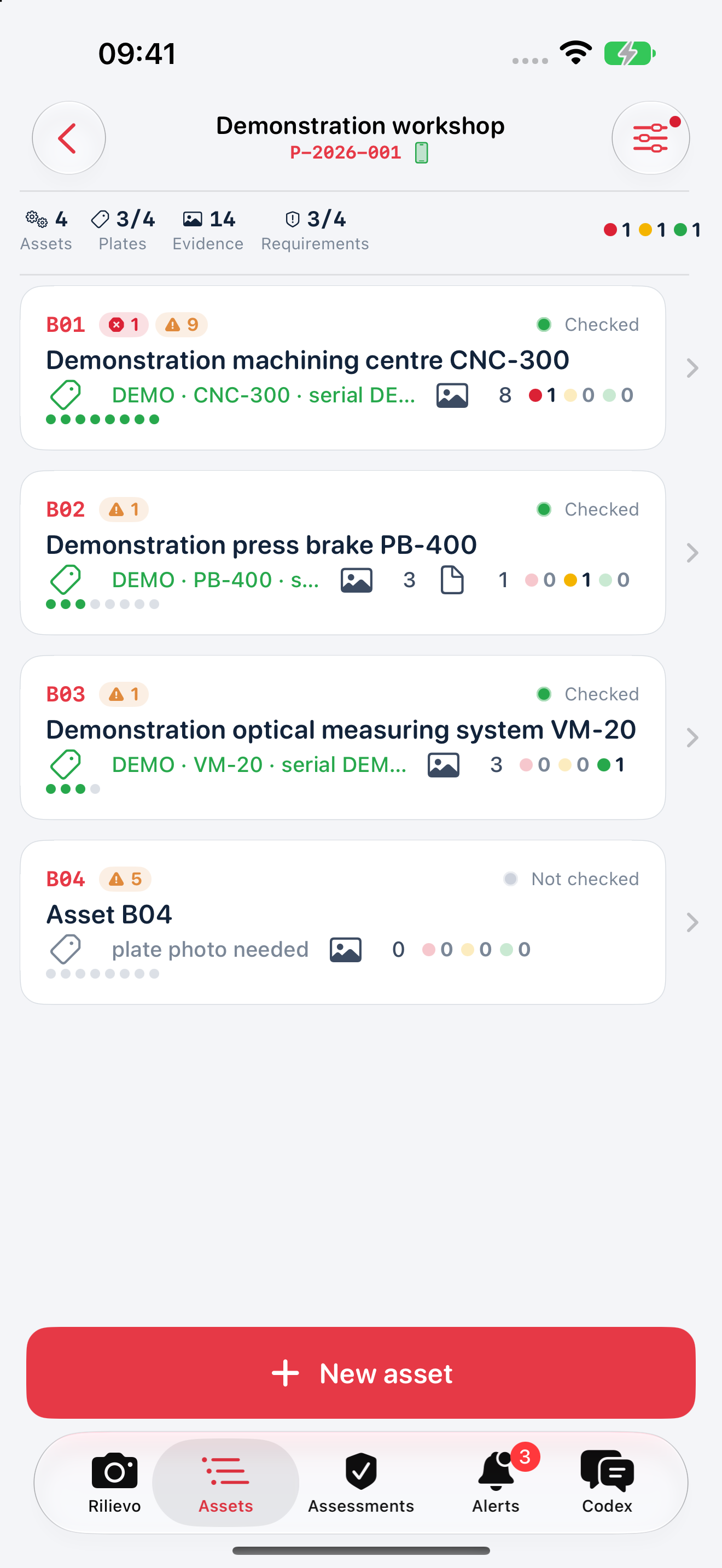
Open Assets and tap “New asset”. The app adds an asset with its own code; open it to complete the details.
Link every photograph, document and assessment to the right asset.
What to look for
A new row appears in the list. No separate form is required before creation.
B04 illustrates creating an empty asset. In the following steps we explore B01, B02 and B03, already populated with DEMO data. Check the selected asset before taking photos.
Explore your asset inventory.
Tap to enlarge
05 / 30 · Step 05
Read your inventory at a glance
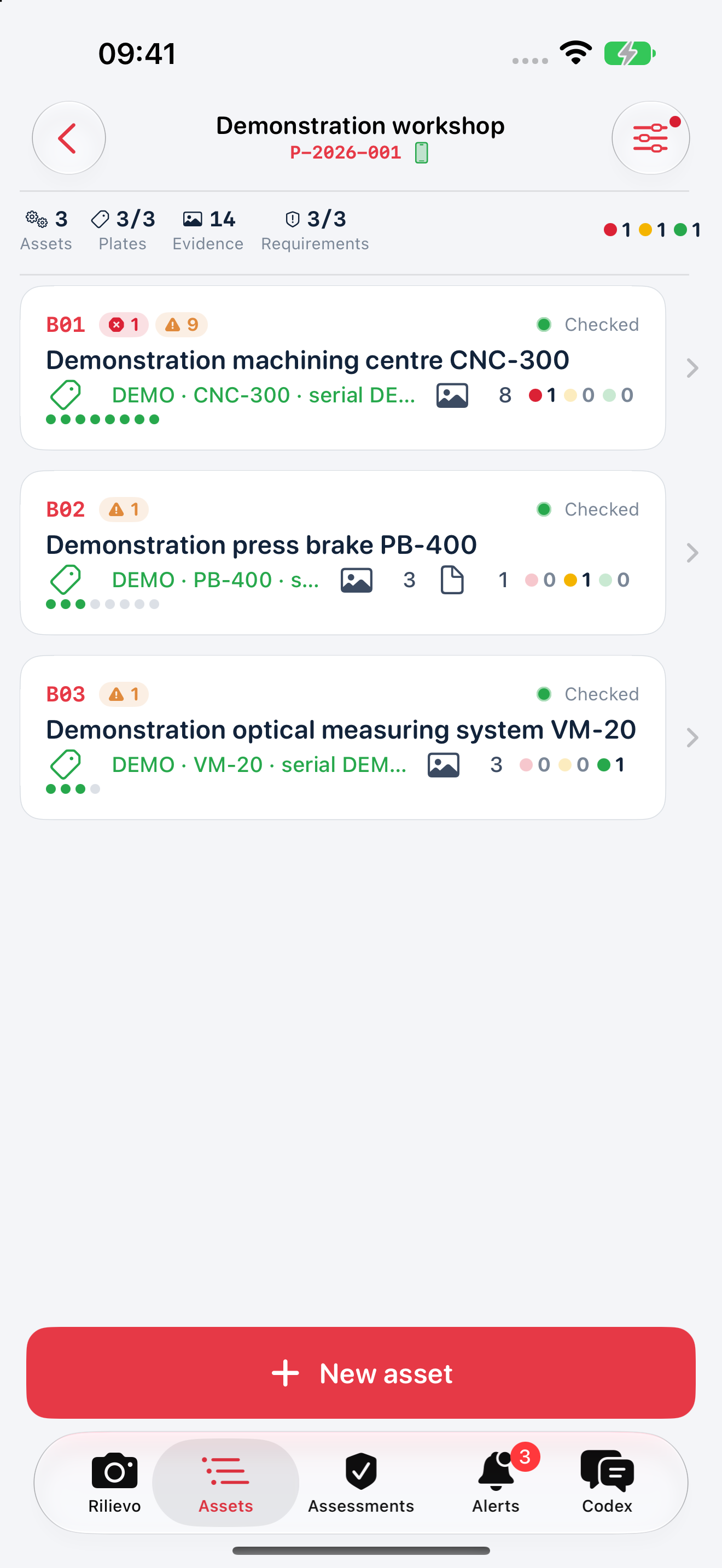
In Assets, open the DEMO machining centre. Review nameplate details, photographs, documents and progress indicators.
See which assets need attention before opening every detail.
What to look for
Codes and evidence remain distinct when an appraisal contains several assets.
Indicators and colours describe workflow status; they do not certify compliance or entitlement to an incentive.
Complete the selected asset's data.
Tap to enlarge
06 / 30 · Step 06
Identity, supply and network together
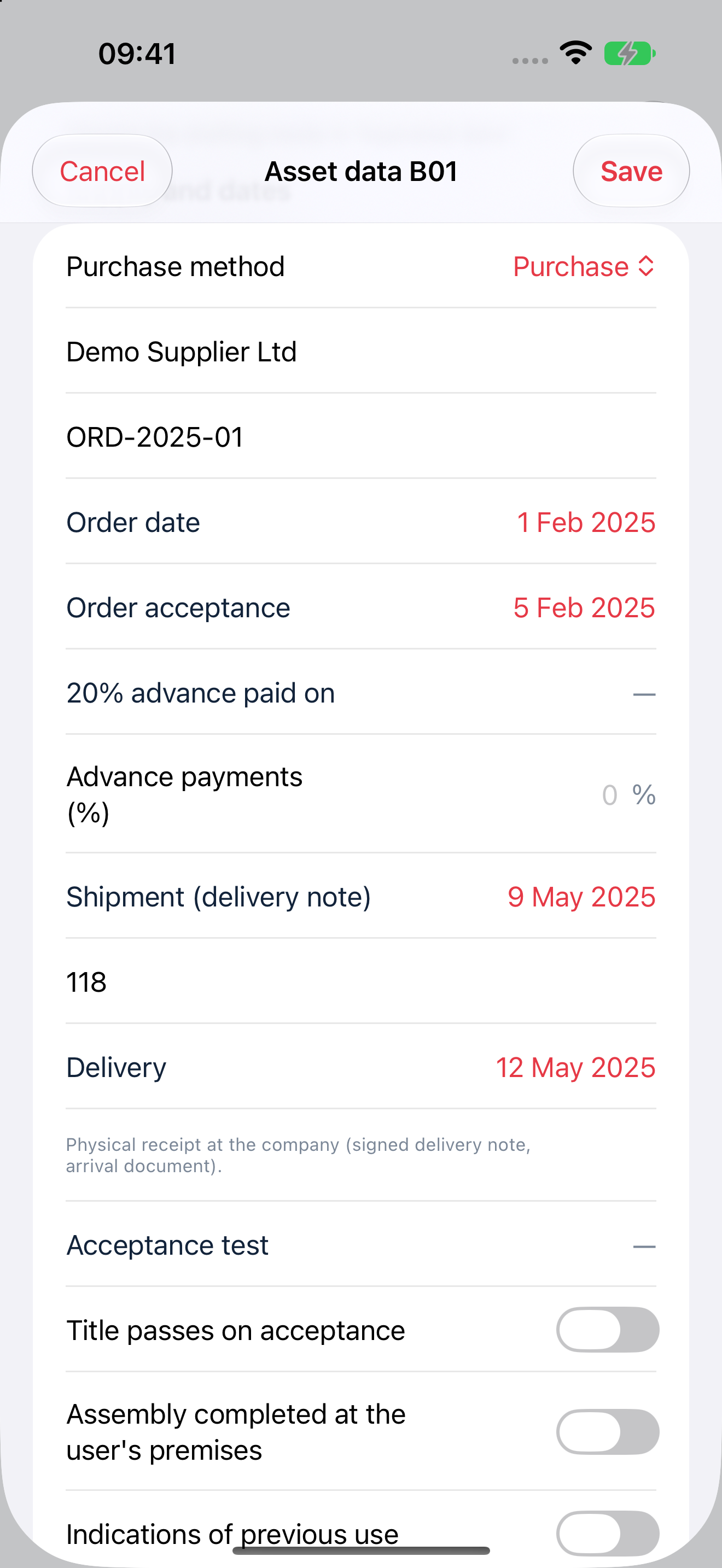
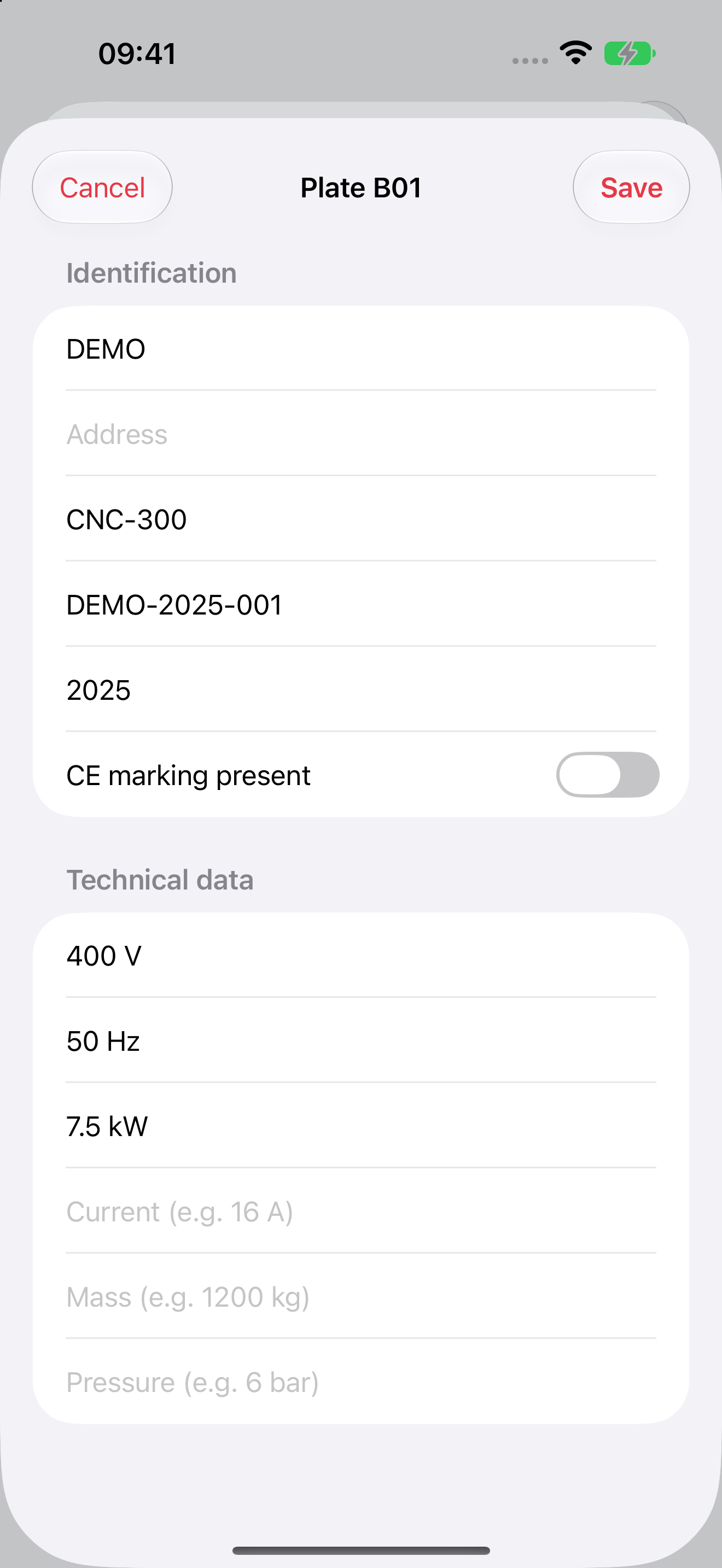
Open the asset and tap “Edit” under “Asset data”. Enter or correct documented details, including supply, location and network data where applicable.
Build one asset record to support both fieldwork and draft preparation.
What to look for
Saved values appear in the asset record.
Enter verified details only. Dates and the assignment's tax scheme require professional review.
Add a readable nameplate and check the extracted details.
Tap to enlarge
07 / 30 · Step 07
Start identification from the nameplate
In the Rilievo tab, select “CE nameplate” and capture a readable photograph. Compare the manufacturer, model and serial number with the original plate.
With AI configured and access active, the extracted data also helps propose the asset's classification.
What to look for
Extracted details remain provisional and editable.
A nameplate alone does not establish function or 4.0 requirements. A classification proposal needs a compatible AI route: Apple Intelligence does not run this dedicated workflow.
Open the proposed catalogue entry.
Tap to enlarge
08 / 30 · Step 08
From proposal to confirmed entry
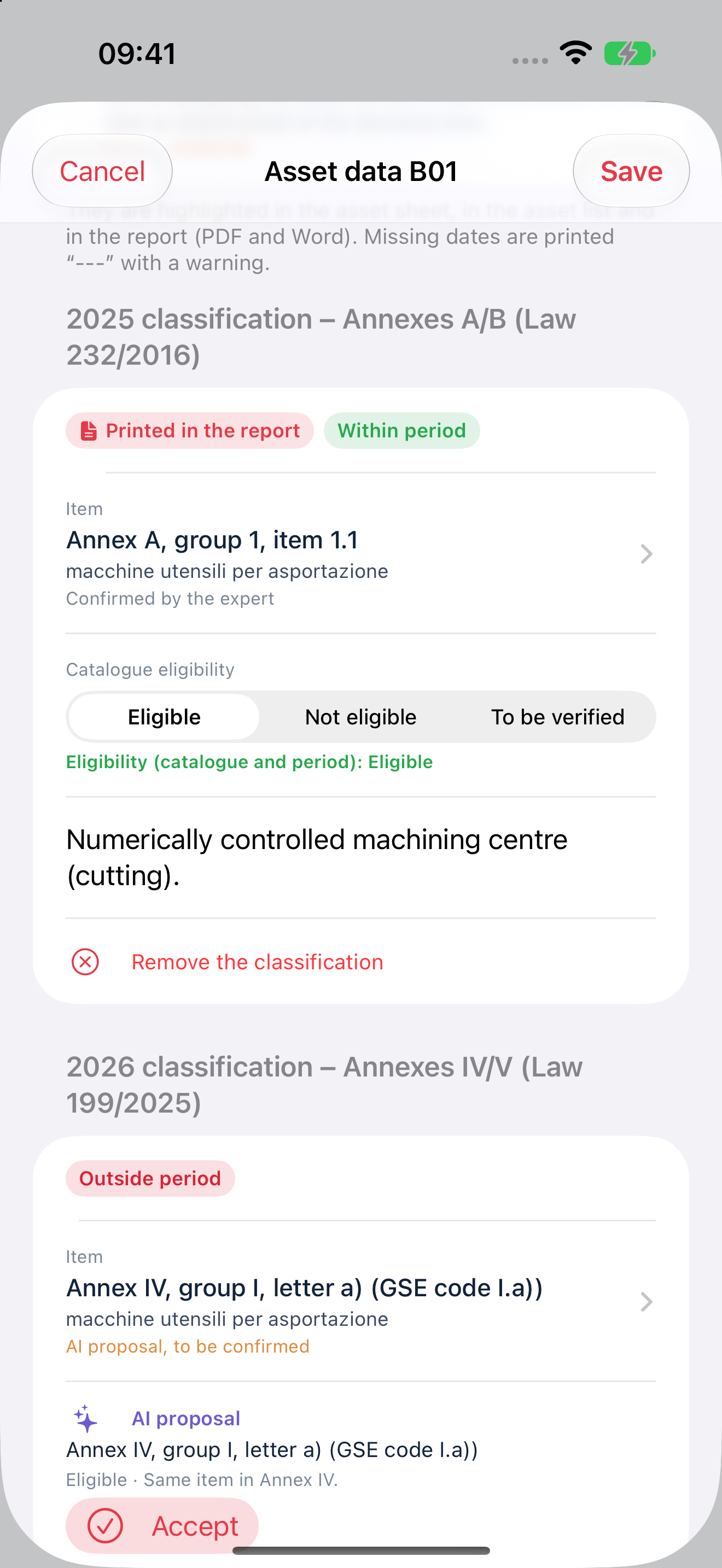
In the asset data, open “Item”. Review the annex, group and entry against the evidence. Confirm the proposal if appropriate, or choose the correct catalogue entry.
Keep the automated suggestion distinct from the professional's decision.
What to look for
The classification's source and status are visible. A professional's selection takes priority over subsequent AI proposals.
The displayed catalogue depends on the scheme and dates. Statutory catalogue wording may remain in Italian within the English interface.
Check the applied requirement profile.
Tap to enlarge
09 / 30 · Step 09
The workflow follows the asset
Read “Requirement profile”. Classification guides the profile and configures the relevant evidence and checks: full 5+2 or “Interconnection only”, as appropriate.
Avoid applying the same evidence checklist to every asset type.
What to look for
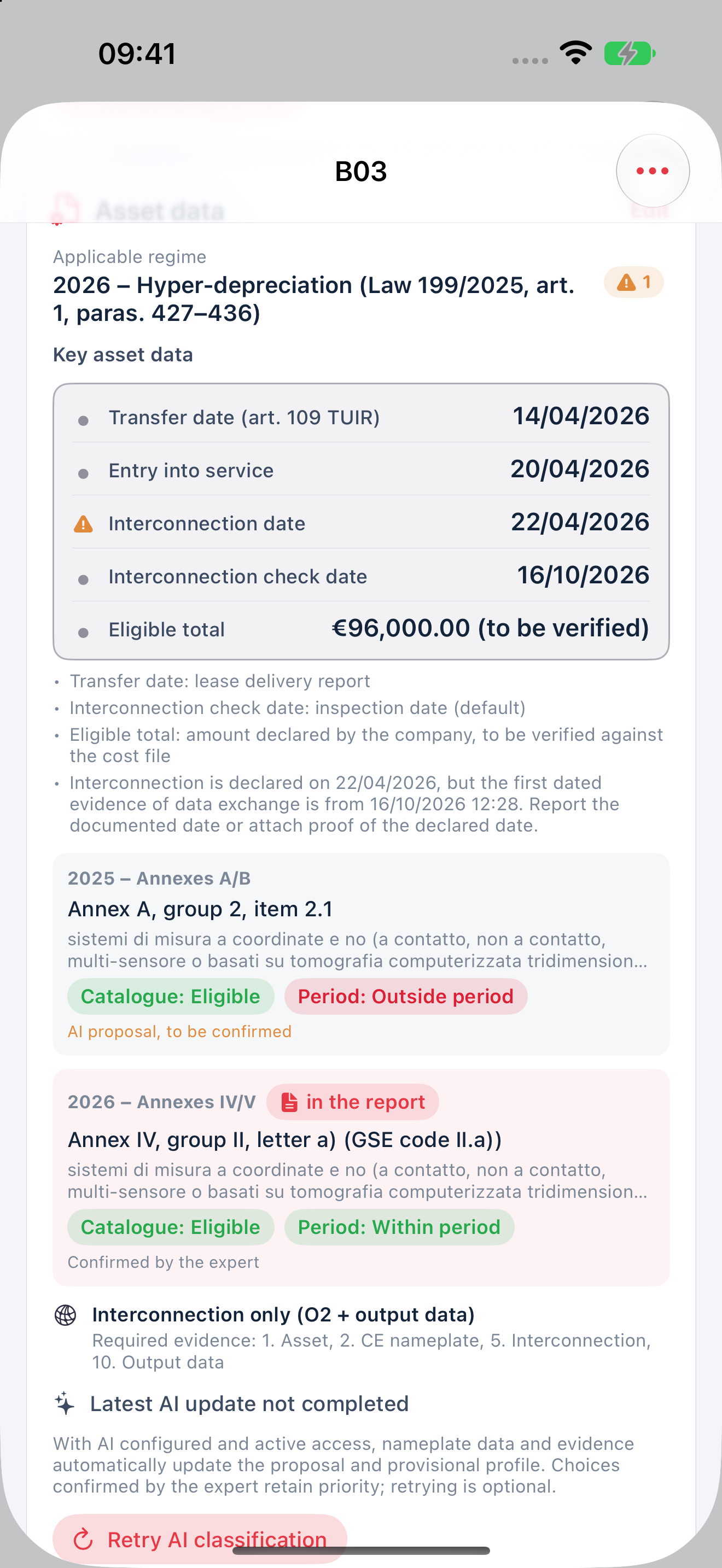
On demonstration asset B03, in group 2, see “Interconnection only” and the output-data check, using a folder or company system.
Reconfiguration does not approve the classification. A professional override requires a reason.
Open the evidence required by the profile.
Tap to enlarge
10 / 30 · Step 10
A practical guide for fieldwork
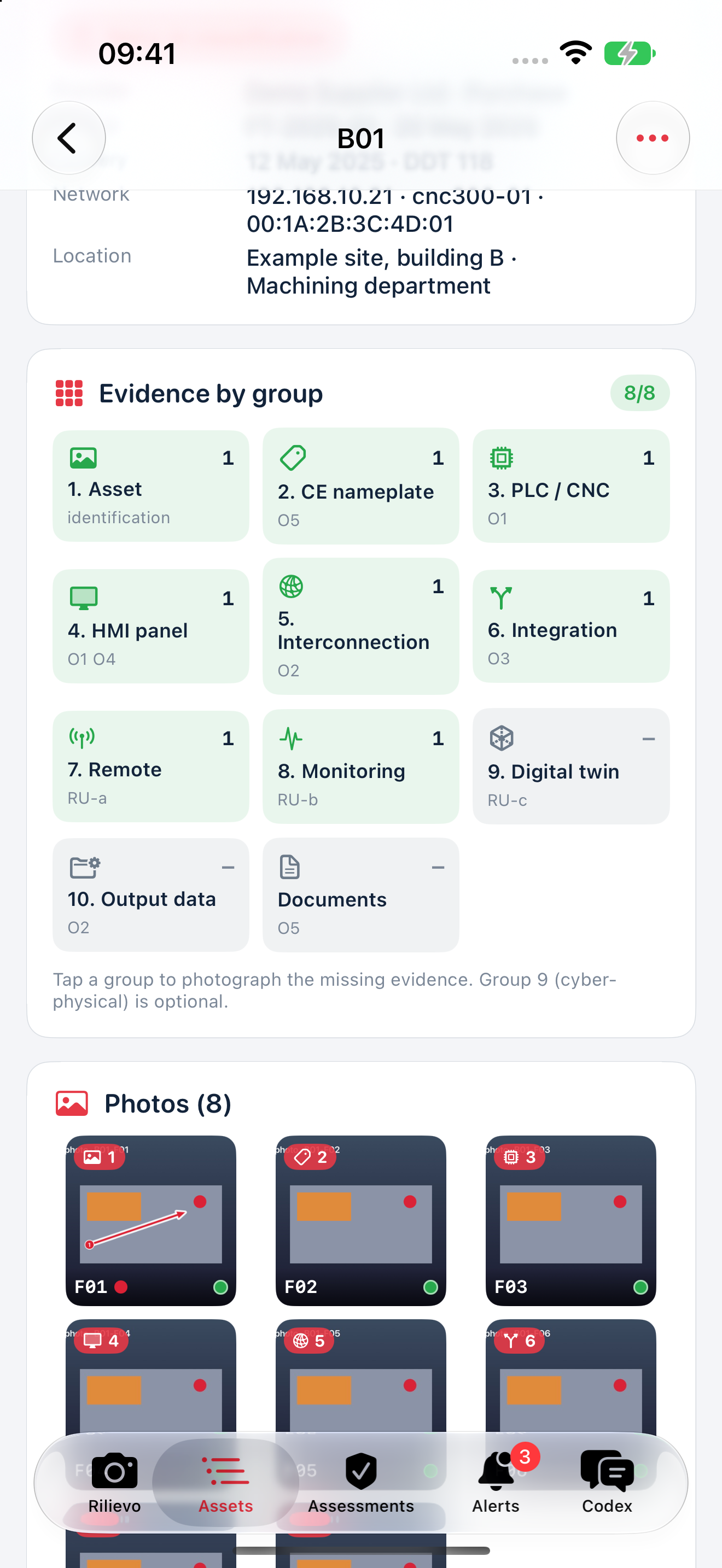
Under “Evidence by group”, tap the group you are working on. Capture relevant evidence and check the asset and group association.
Make evidence collection systematic: see what you have and what is missing.
What to look for
Counts follow the applied profile. Other evidence already collected remains available.
A complete count indicates evidence is present, not that the requirement has been established.
Annotate the detail that matters in the photograph.
Tap to enlarge
11 / 30 · Step 11
Point to exactly what you observed
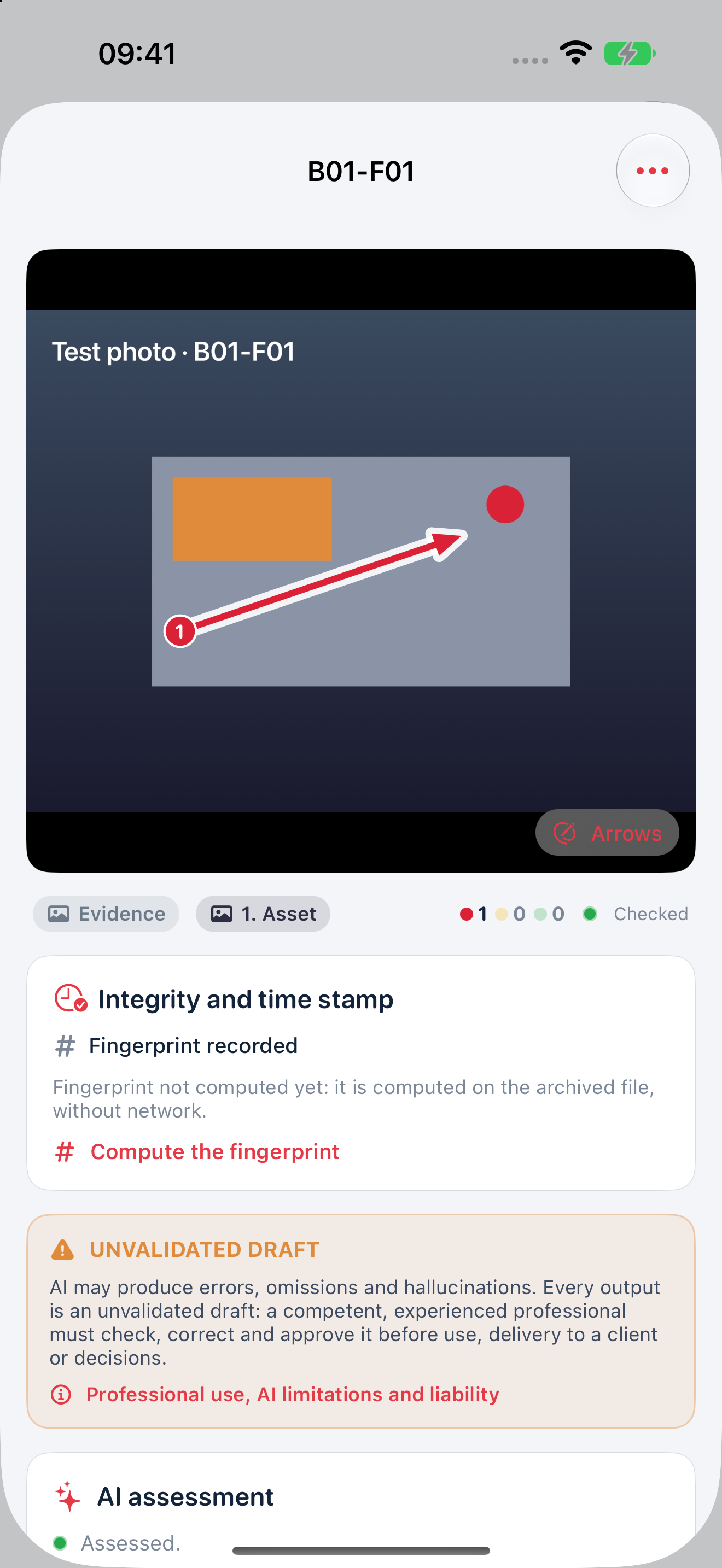
Open a photograph and tap “Arrows”. Add an arrow with a short, precise note, review the wording and tap “Done”.
Help the reviewer connect each comment to the visible detail.
What to look for
The photograph retains its asset reference and example annotations.
DEMO annotations illustrate the workflow. They do not demonstrate that a live AI analysis was performed while producing this guide.
Add documents that support the finding.
Tap to enlarge
12 / 30 · Step 12
Keep documents with their asset
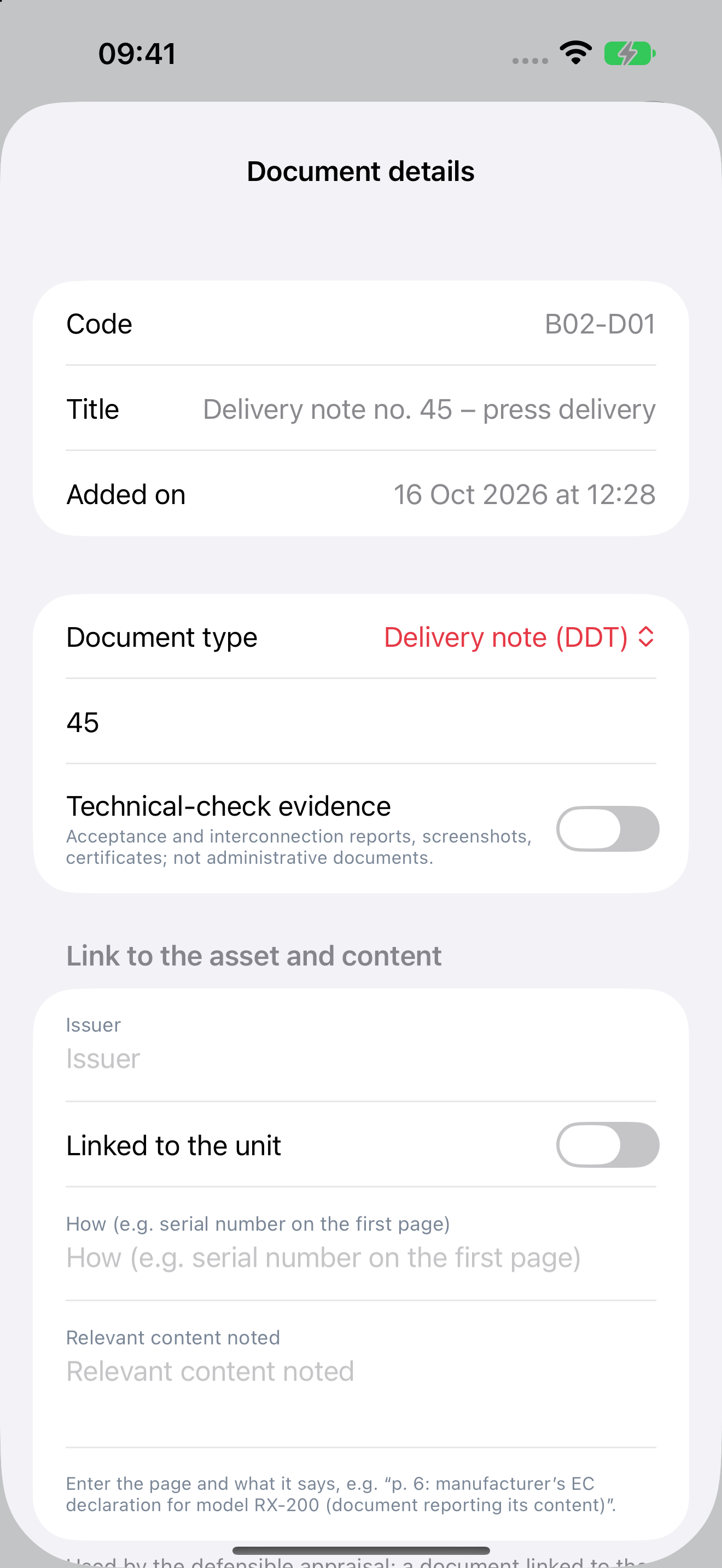
Use scanning or Files import to add an example document to the asset. Check its title, pages and association; note the relevant content you have verified.
Keep photographs and documentary sources close to the point being assessed.
What to look for
The document appears under the asset and can be opened.
For on-device AI in defensible drafting, the relevant annotated content matters: do not assume it has read the entire PDF.
Check the dates against the available sources.
Tap to enlarge
13 / 30 · Step 13
Different dates mean different events
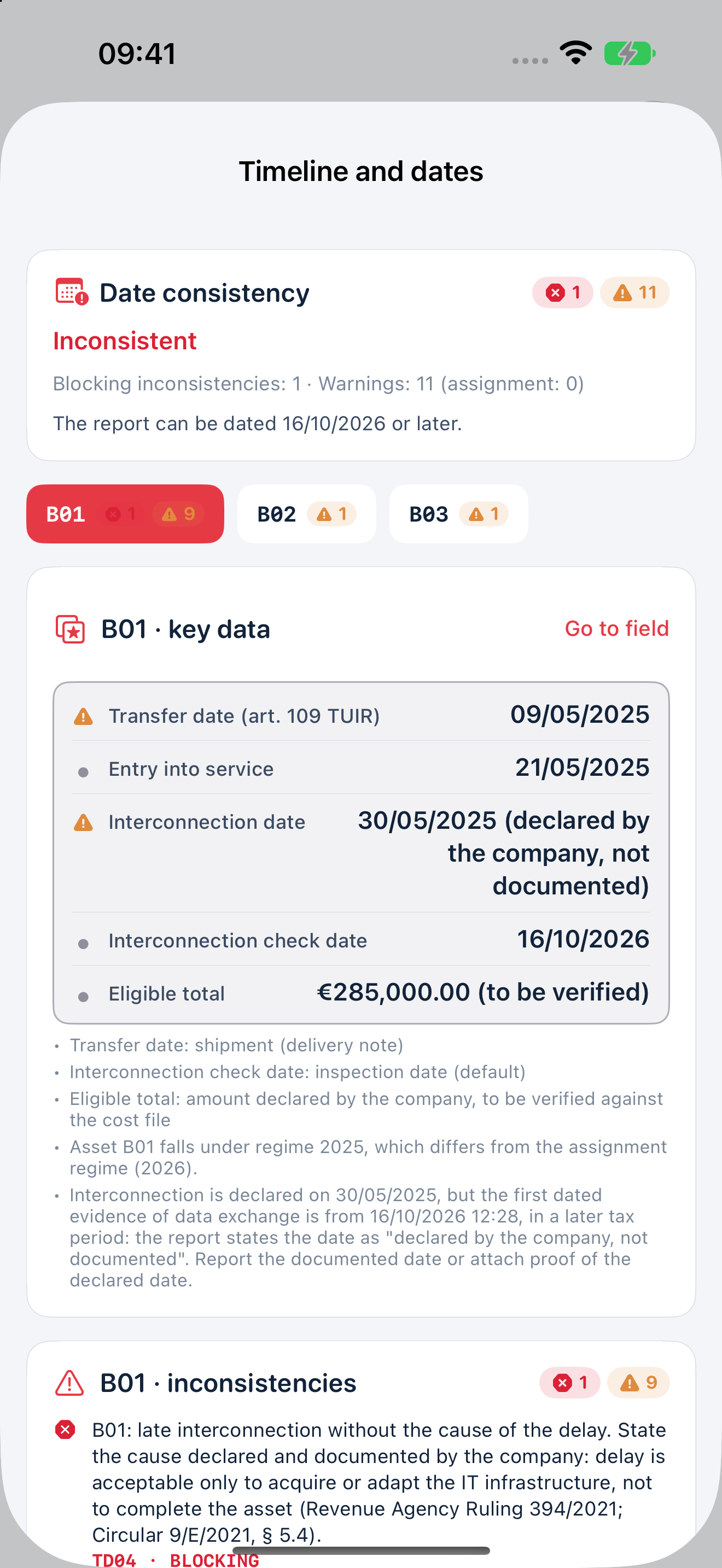
Open “Timeline and dates”. Distinguish investment, first operation, interconnection and its verification; use evidence documenting each event.
Review the sequence and address inconsistencies before generating the report.
What to look for
Warnings point to items requiring clarification.
Do not copy the invoice date into every field. AI does not complete or approve the dates.
Open Assessments to review progress.
Tap to enlarge
14 / 30 · Step 14
Bring the work together in Assessments
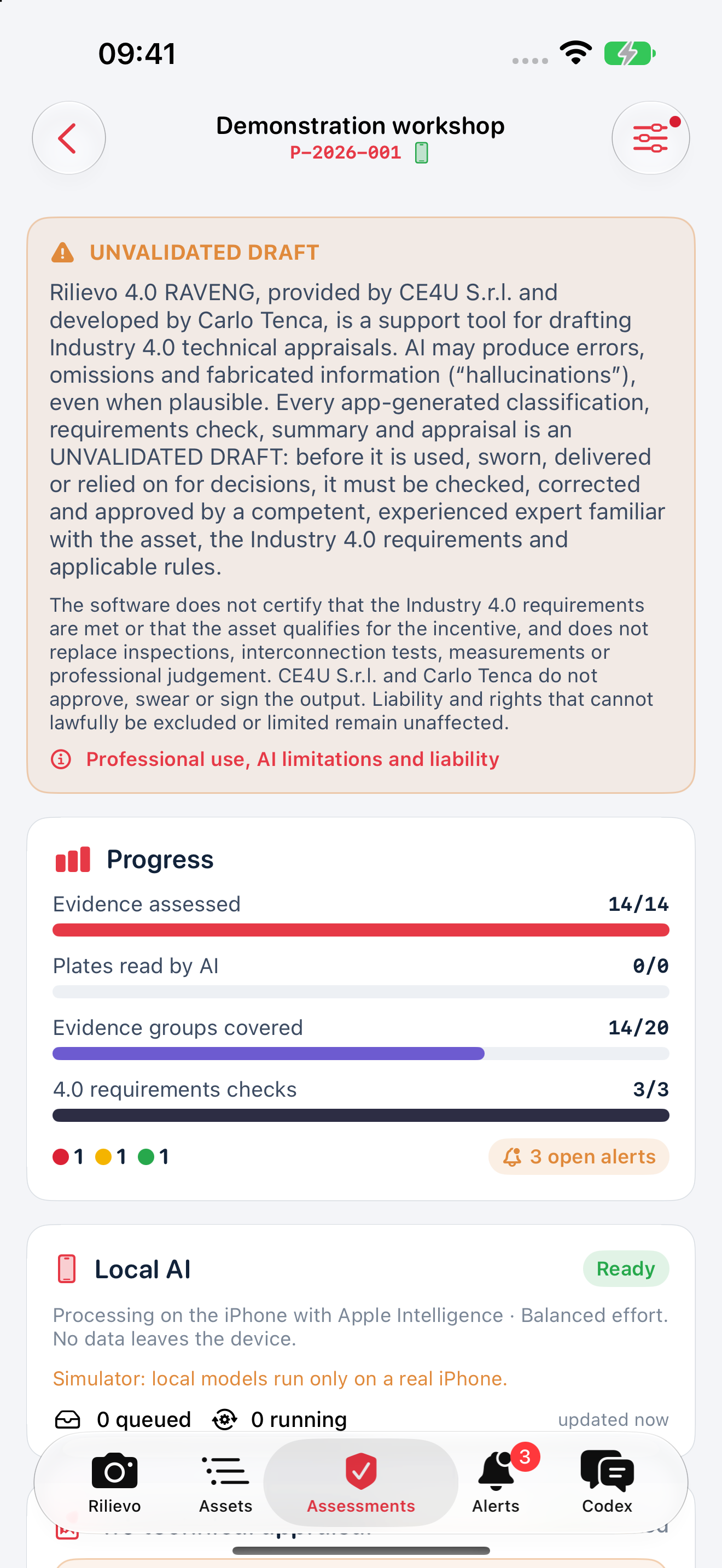
Open Assessments. Review the status of photographs, asset checks and the report; open the asset you want to examine.
See processing progress and choose where to continue.
What to look for
Each status describes an activity, such as pending, running or received, as applicable.
“Completed” means a response has been received, not that the appraisal is correct or approved.
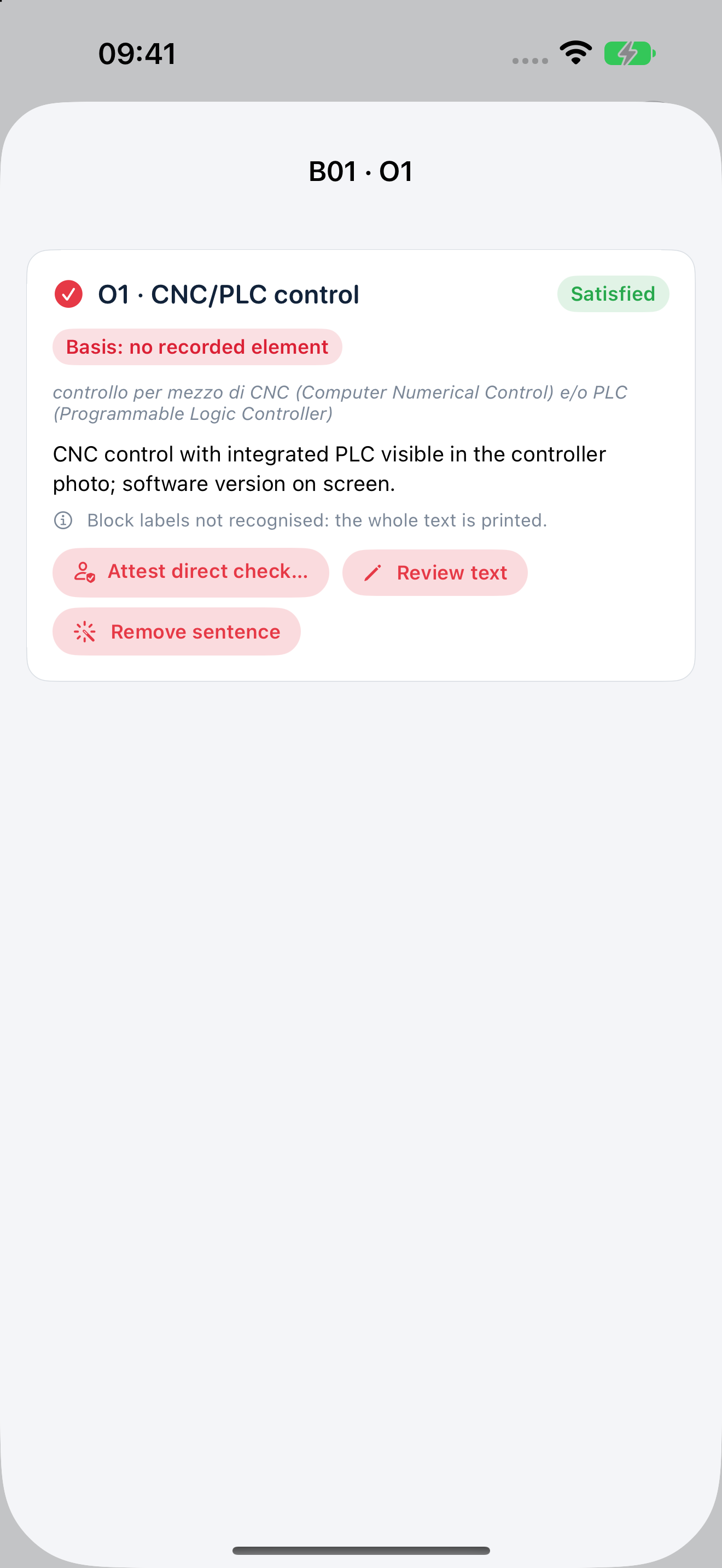
Read a check requirement by requirement.
Tap to enlarge
15 / 30 · Step 15
Trace a judgement to its supporting evidence
Open the 4.0 requirements check and a requirement. Read the outcome, text and basis status. If evidence or structure is missing, add the supporting information and review the text before approval.
Identify missing support and distinguish a summary outcome from a documented check.
What to look for
Identify the controls for reviewing the text and attesting a direct check. Attest only after actually carrying out that check.
This DEMO example contains a summary response without a structured basis. A green status is insufficient: AI can make errors and an experienced professional must verify every conclusion.
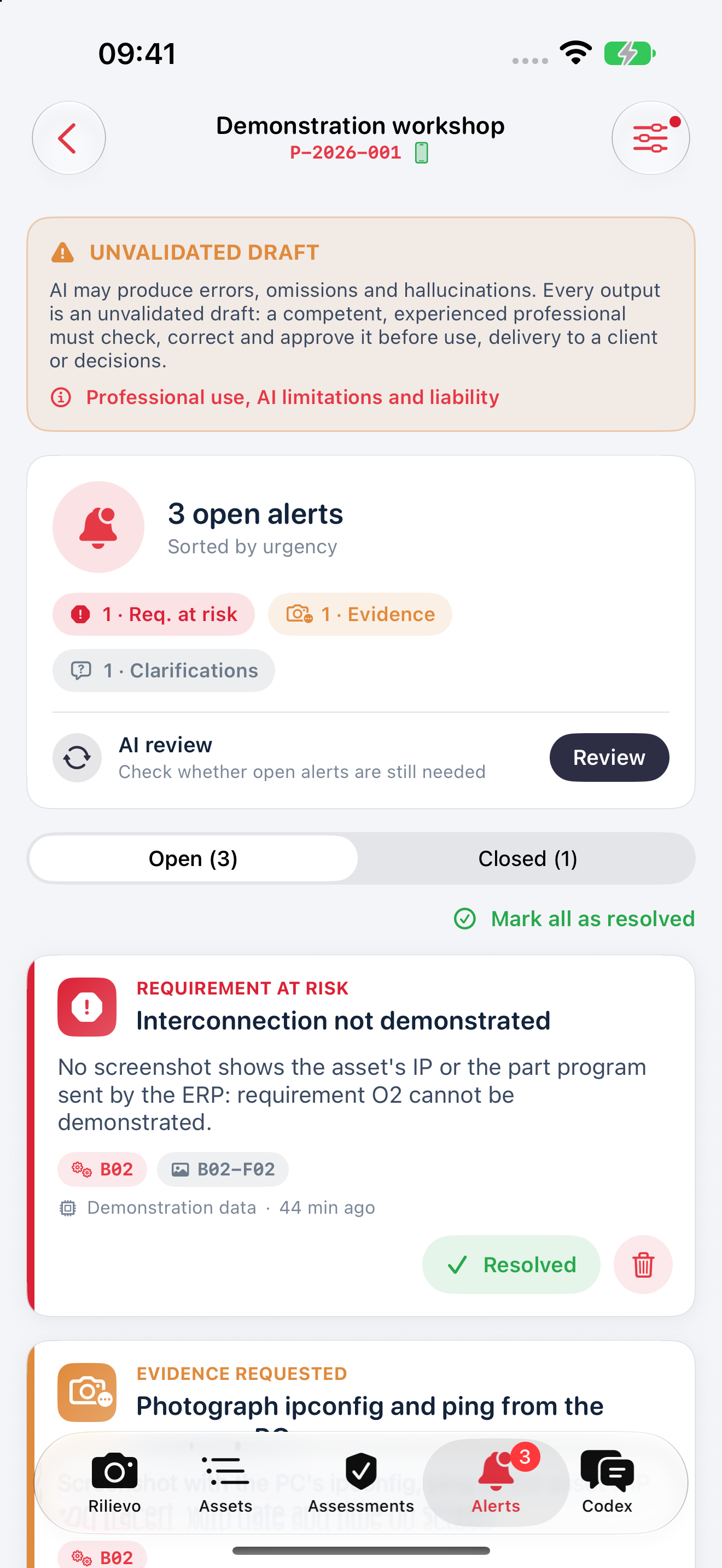
Open the assignment's alerts.
Tap to enlarge
16 / 30 · Step 16
Turn alerts into your next action
Open Alerts and see what is needed: a photograph, a document, clarification or a check. Start with the item relevant to the asset you are reviewing.
Turn a gap into a concrete task to complete on site.
What to look for
Each alert shows its context and remains available with its history.
An automated alert assists review; its absence does not guarantee completeness.
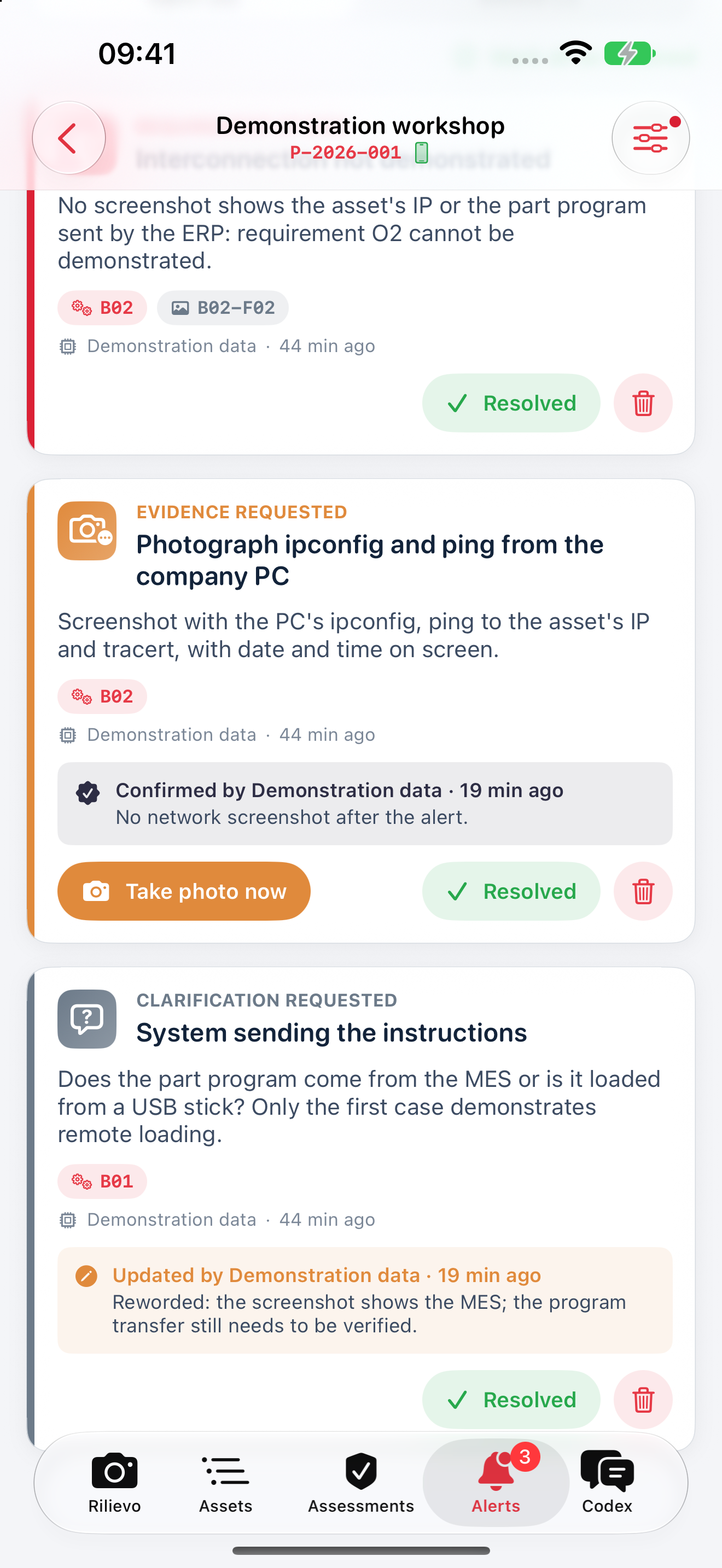
Record your decision on the alert.
Tap to enlarge
17 / 30 · Step 17
Read the alert in context
On the Alerts tab, read the open issue in its card. Compare it with the asset and new findings; use “Resolved” only after checking the correction.
Understand why the issue was raised and prepare the necessary correction or additional evidence.
What to look for
Identify the asset, the issue description and the actions available on the card.
Closing an alert in the app does not replace evidence of the requirement.
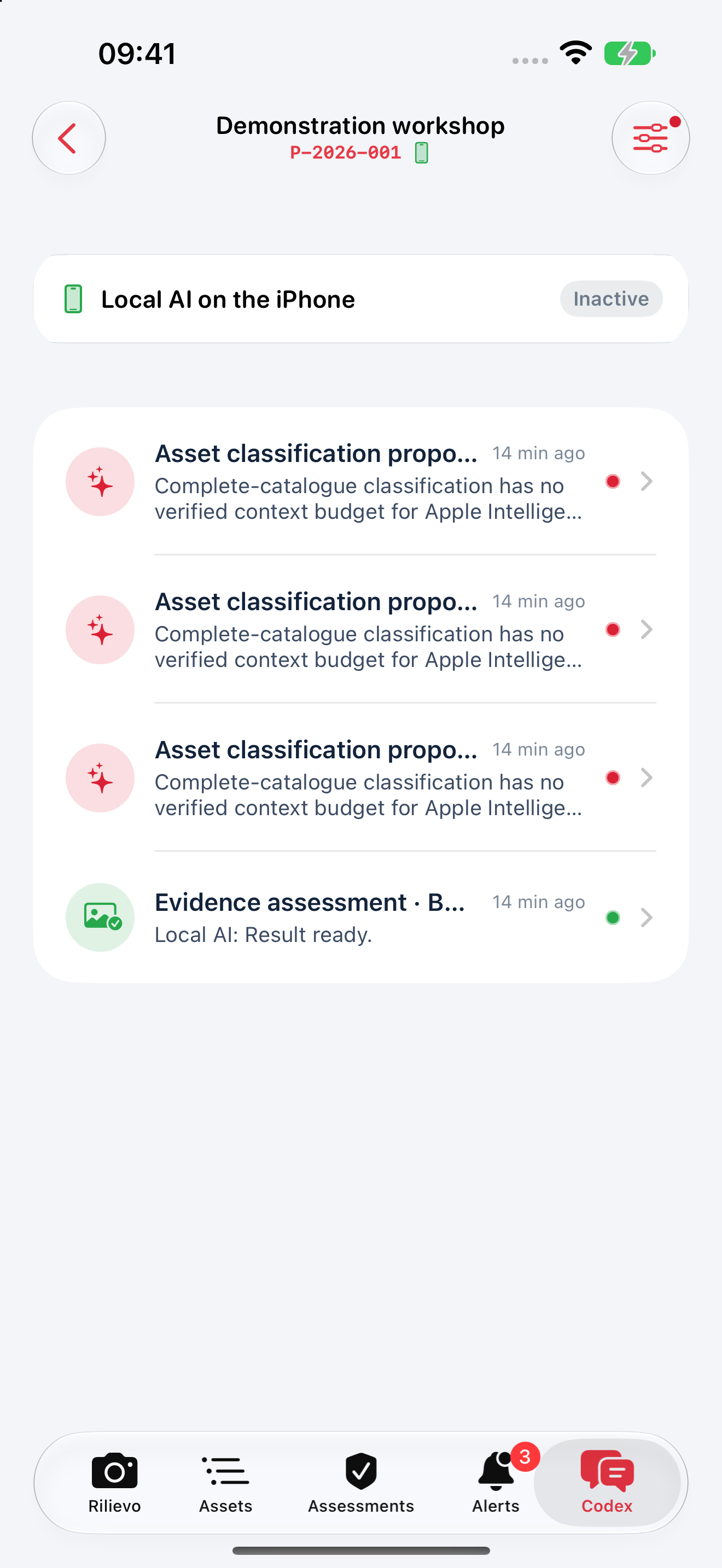
Check the linked conversation or job in Codex.
Tap to enlarge
18 / 30 · Step 18
Keep the conversation beside the evidence
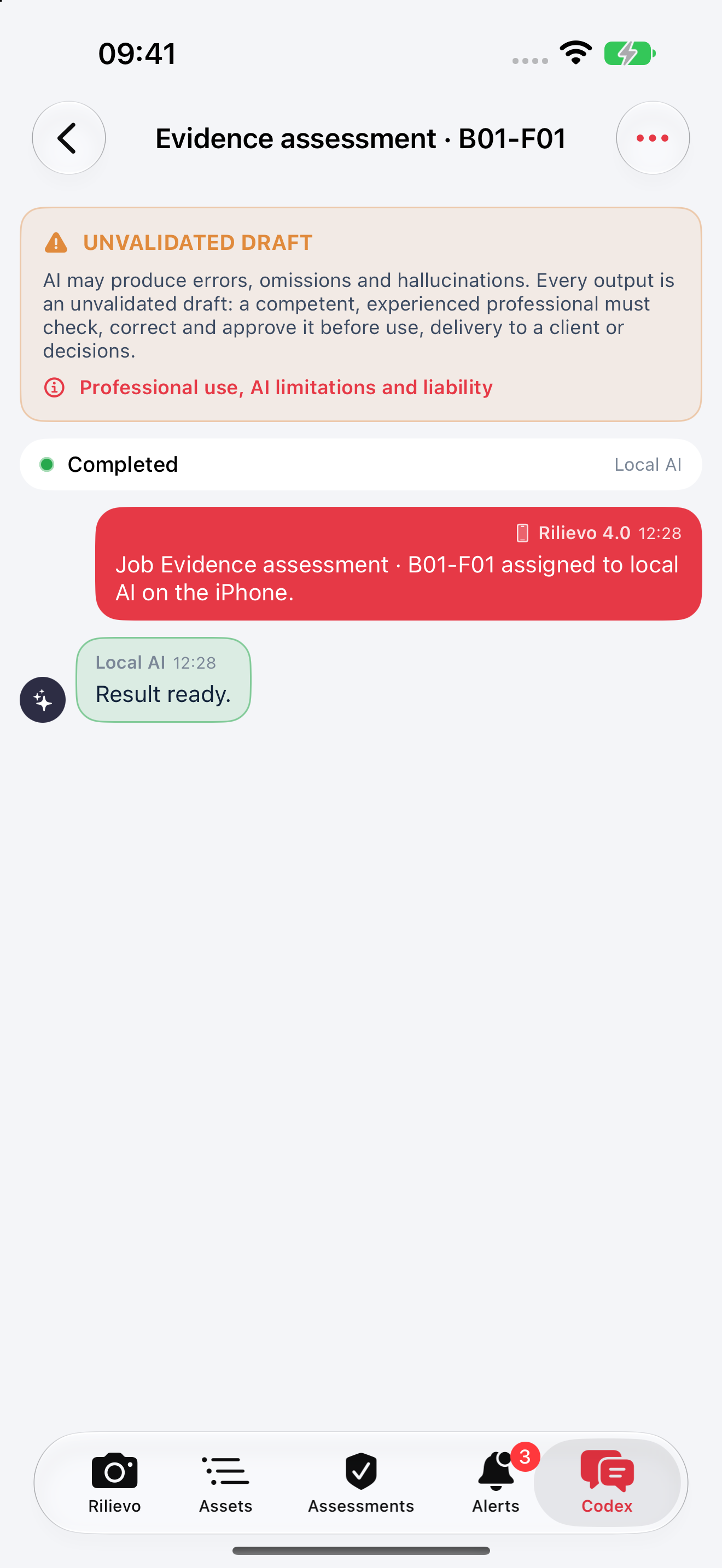
Open Codex. Select the conversation for the nameplate, photograph or asset check.
Find requests and responses while keeping their subject in view.
What to look for
Read the asset, processing type and conversation status.
The tab is called Codex even when on-device or API AI is selected. Its name does not mean everything is sent to the Cloud service.
Open the details and compare the response with the evidence.
Tap to enlarge
19 / 30 · Step 19
Read the response, then verify it
Open a conversation. Read the request, response and available details. For Cloud work, job or pull-request links appear when the job is actually connected.
Reconstruct the context and ask a focused follow-up question.
What to look for
Compare the asset reference and response with the evidence.
Conversations in this guide are demonstrations. An open pull request records the request created on GitHub; it does not prove that Codex has started or finished, or that the result is correct.
Choose and configure the AI engine for your workflow.
Tap to enlarge
20 / 30 · Step 20
Set up your working preferences
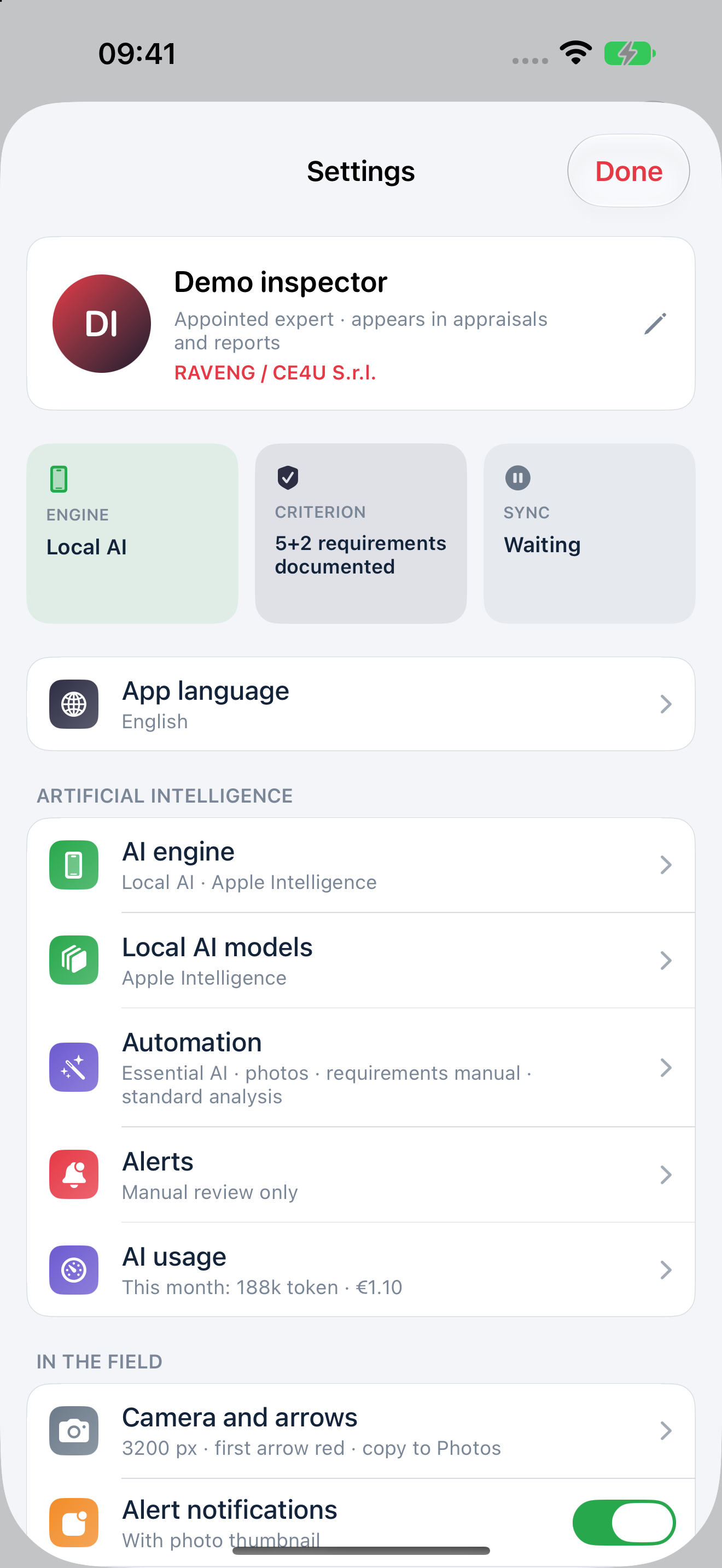
Tap the gear on the home screen. Settings brings together language, AI engine, automations, camera, reports and subscription.
Prepare the app before arriving at the client site.
What to look for
“Automatic” uses Italian on an Italian-language device and English otherwise; you can also select a language manually.
Practise with demonstration data and keep confidential photographs, tokens and documents out of shared screenshots. Usage counters shown are DEMO data.
Open AI engine.
Tap to enlarge
21 / 30 · Step 21
Three routes, an informed choice
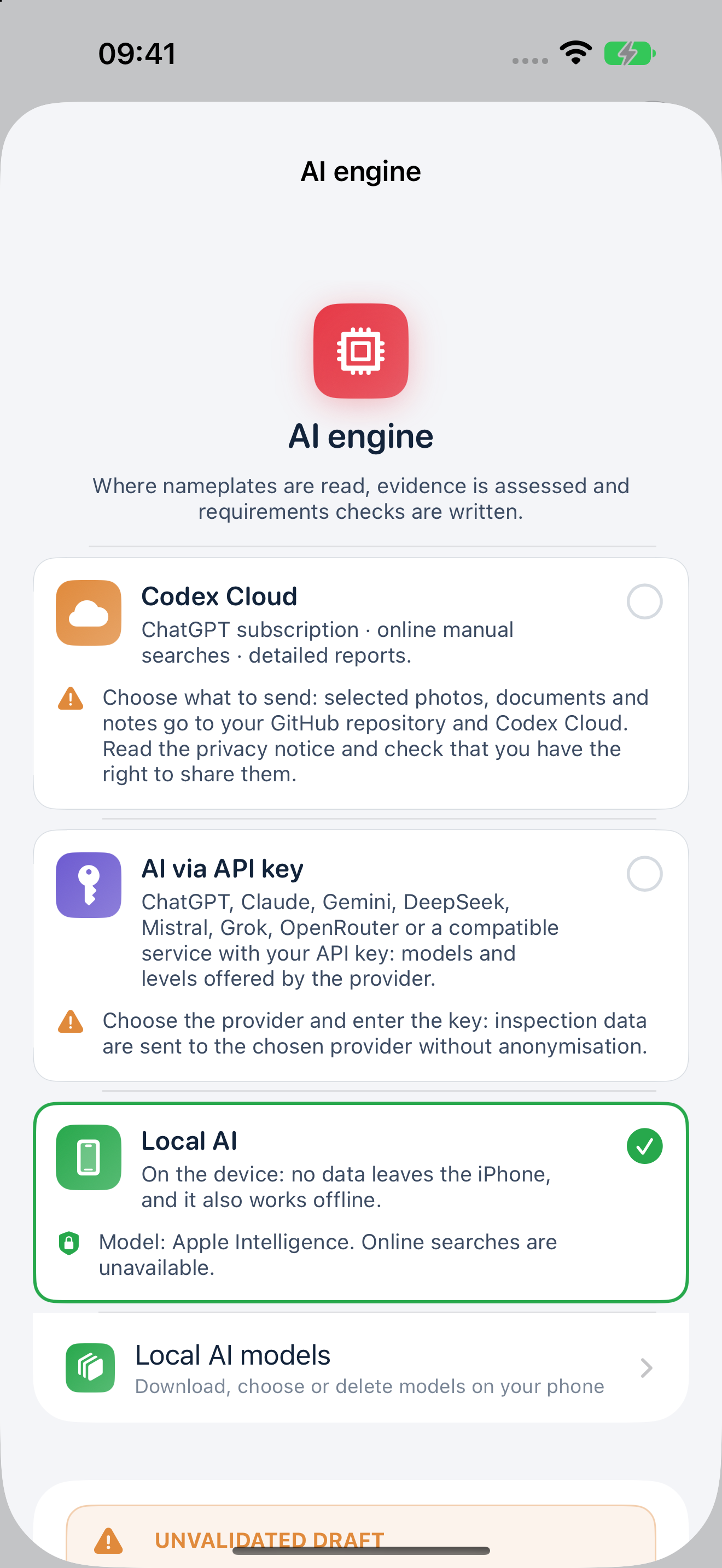
In AI engine, choose on-device AI, AI via API key or Codex Cloud. Read the channel's notice before enabling it and sending material.
Match the workflow to your device, available services and data permissions.
What to look for
The selected engine and any missing setup steps are identifiable.
API and Codex Cloud require connectivity and separate services. Provider availability, limits and costs are not automatically included in the app subscription.
Follow one of the three setup routes below.
Tap to enlarge
22 / 30 · Step 22
On device: prepare the model, then test
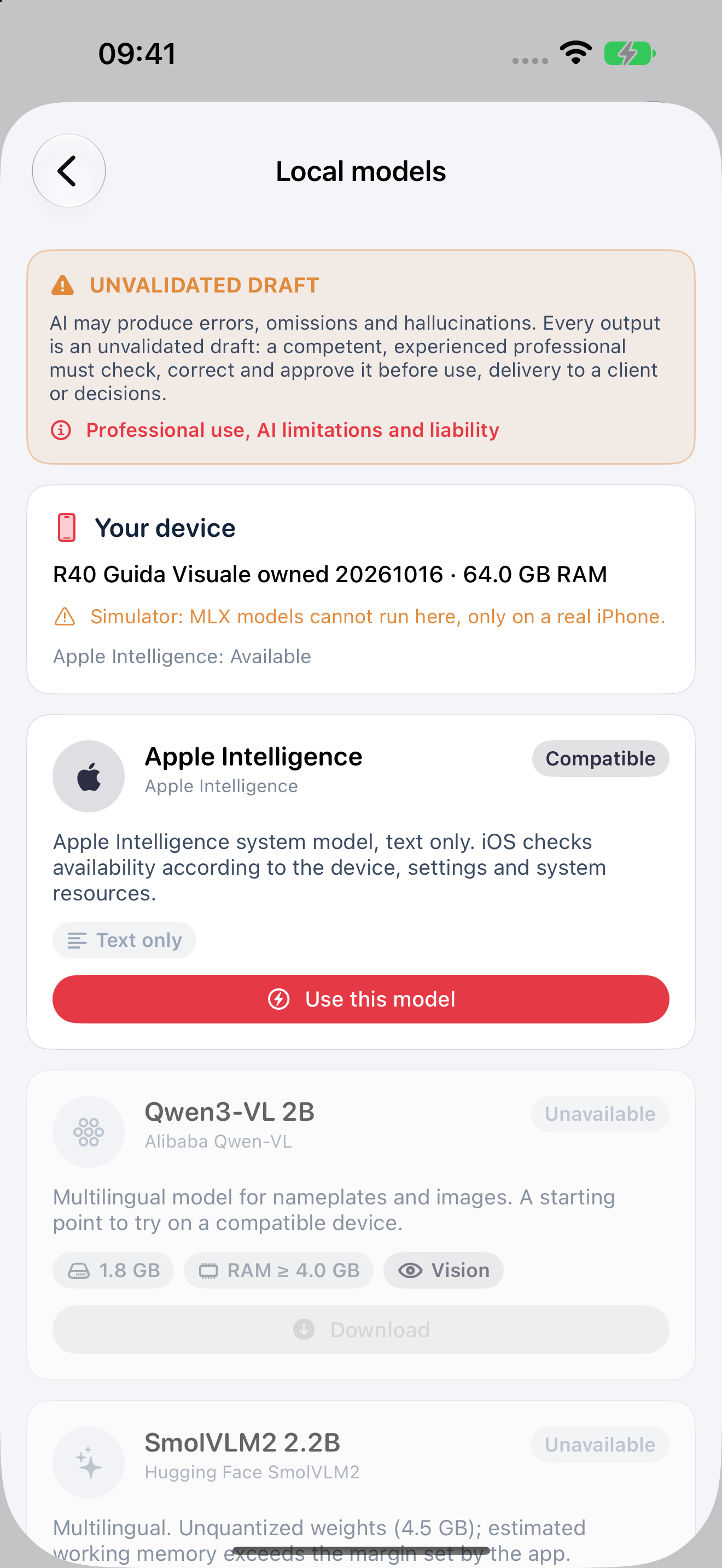
Open Local AI models. Check compatibility and storage, download a suitable model and select it once ready. Photographs require a vision model.
Prepare processing on a compatible device without uploading the evidence to an AI provider for on-device inference.
What to look for
Identify compatibility, download status and the selected model. On your iPhone, start analysis only when the model is ready and in use.
MLX inference does not run in the simulator. Apple Intelligence is text only and does not perform the structured 4.0 classification-proposal workflow: use a compatible MLX model or another channel for that workflow. RAM displayed by the simulator does not describe a real iPhone.
Test one DEMO photograph on a compatible iPhone.
Tap to enlarge
23 / 30 · Step 23
API: connect your provider
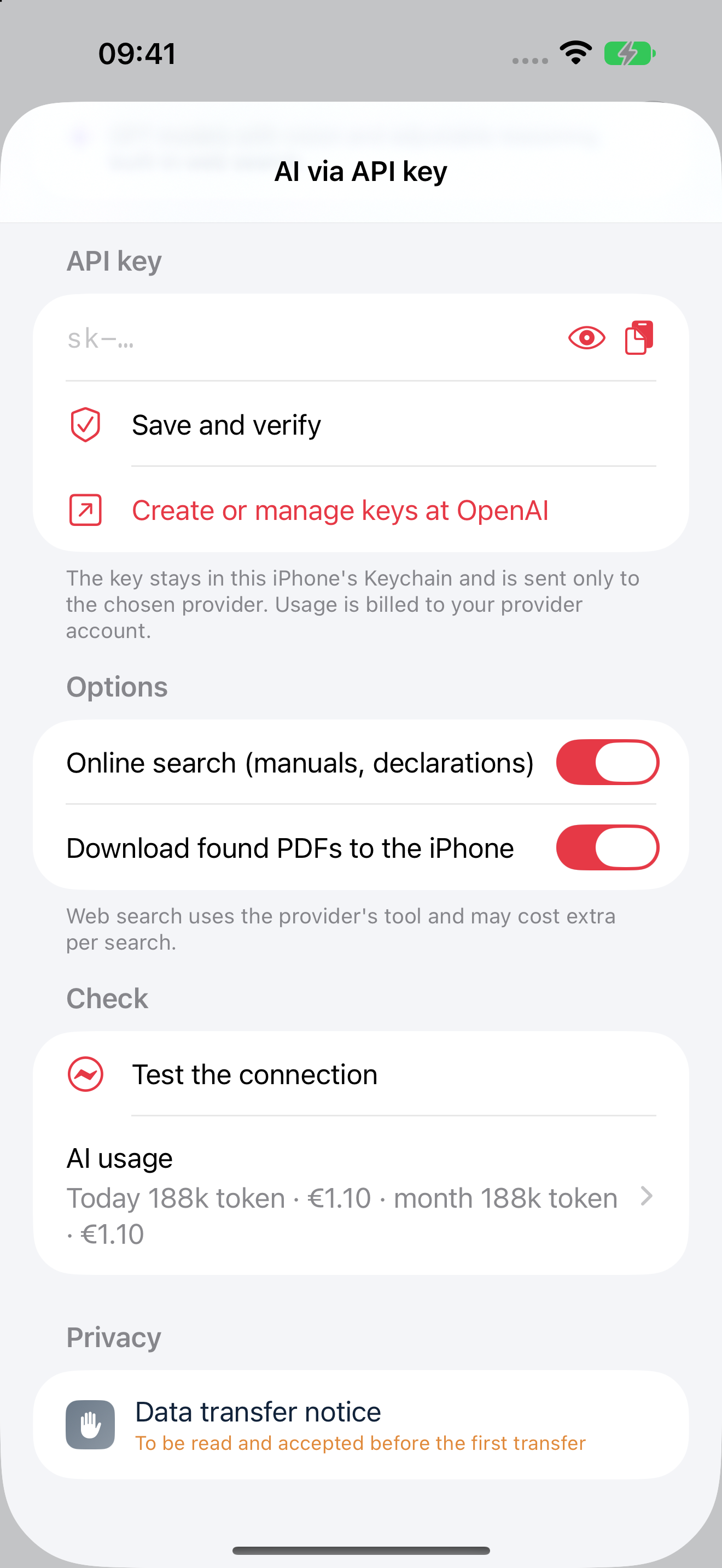
Open AI via API key and “Provider, key, model and level”. Select the provider, enter your key in the protected field and use “Save and verify”. Then test the connection with DEMO material.
Choose a service and model available to your account.
What to look for
The app distinguishes setup, access verification and evidence analysis.
The demonstration screens contain no real API keys. On your iPhone, enter your key only in the protected field and do not share it in screenshots or documents. Requests, including tests and retries, may incur charges. AI usage estimates do not guarantee a spending cap.
If you prefer Codex Cloud, prepare the GitHub connection as well.
Tap to enlarge
24 / 30 · Step 24
Cloud: connect two separate permissions
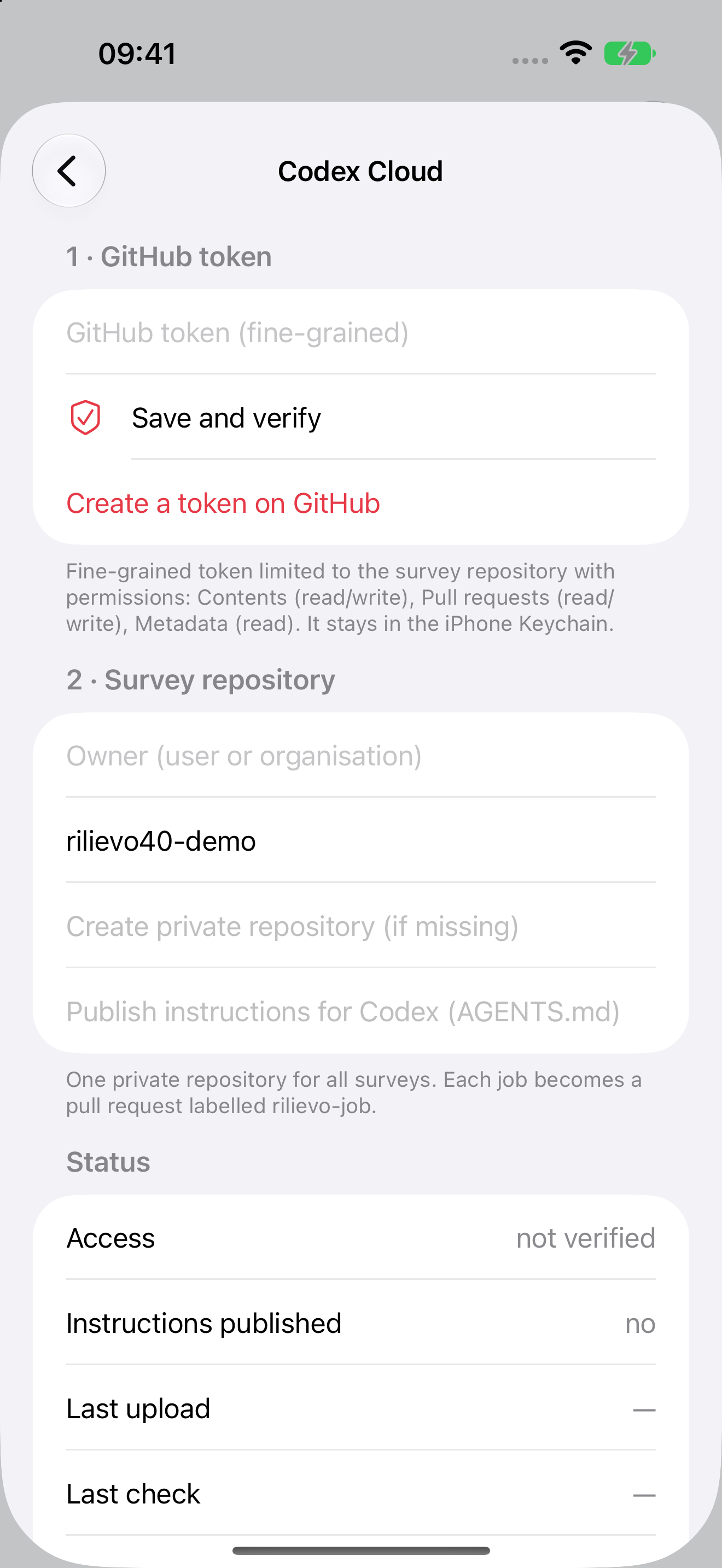
In Codex Cloud, open “GitHub and Codex connection”. Use a dedicated private repository: owner, name and token are separate fields. Separately authorise Codex to access that same repository and follow the linked full guide.
Make the data destination and access permissions explicit.
What to look for
Identify the configuration fields. Before working with clients, verify a DEMO run on your own account from the request through to the result imported into the app.
The iPhone token alone does not configure Codex. The @codex route requires the integration expected by the app; “PR only” and “Manual” require external initiation. Check services, costs and permission to transfer the data before sending it.
Return to the appraisal and complete the assignment details.
Tap to enlarge
25 / 30 · Step 25
Set the context before creating the document
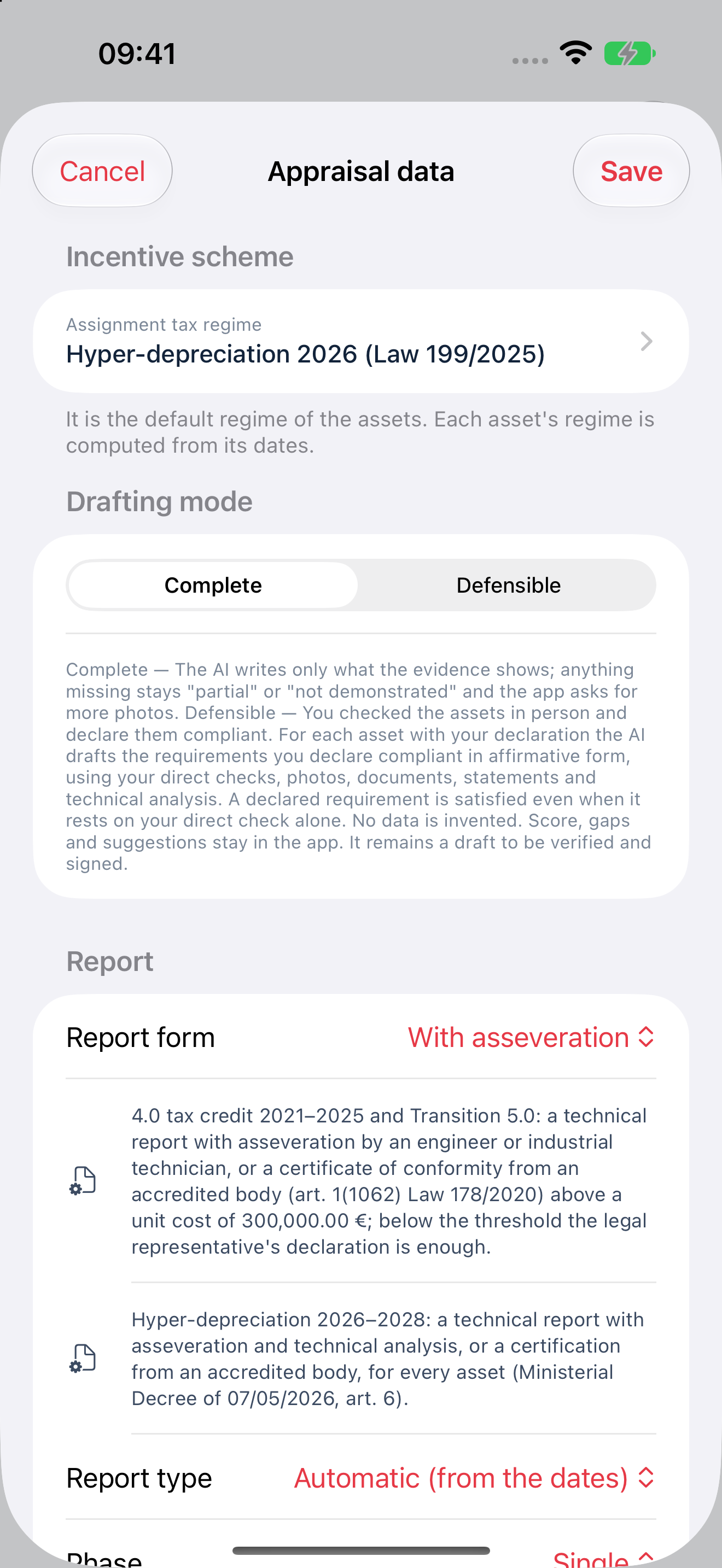
Open the Appraisal panel and “Appraisal data”. Check the client, professional, assignment scheme, drafting mode, form, type, stage and dates against the displayed fields.
Read the explanations of “Complete” and “Defensible” drafting modes before choosing how to prepare the text.
What to look for
Assignment details are saved and can be checked against each asset's details.
Do not select a scheme to obtain a favourable outcome. If evidence or expertise is missing, leave the point open for review.
Open PDF and Word reports.
Tap to enlarge
26 / 30 · Step 26
Choose the document you need
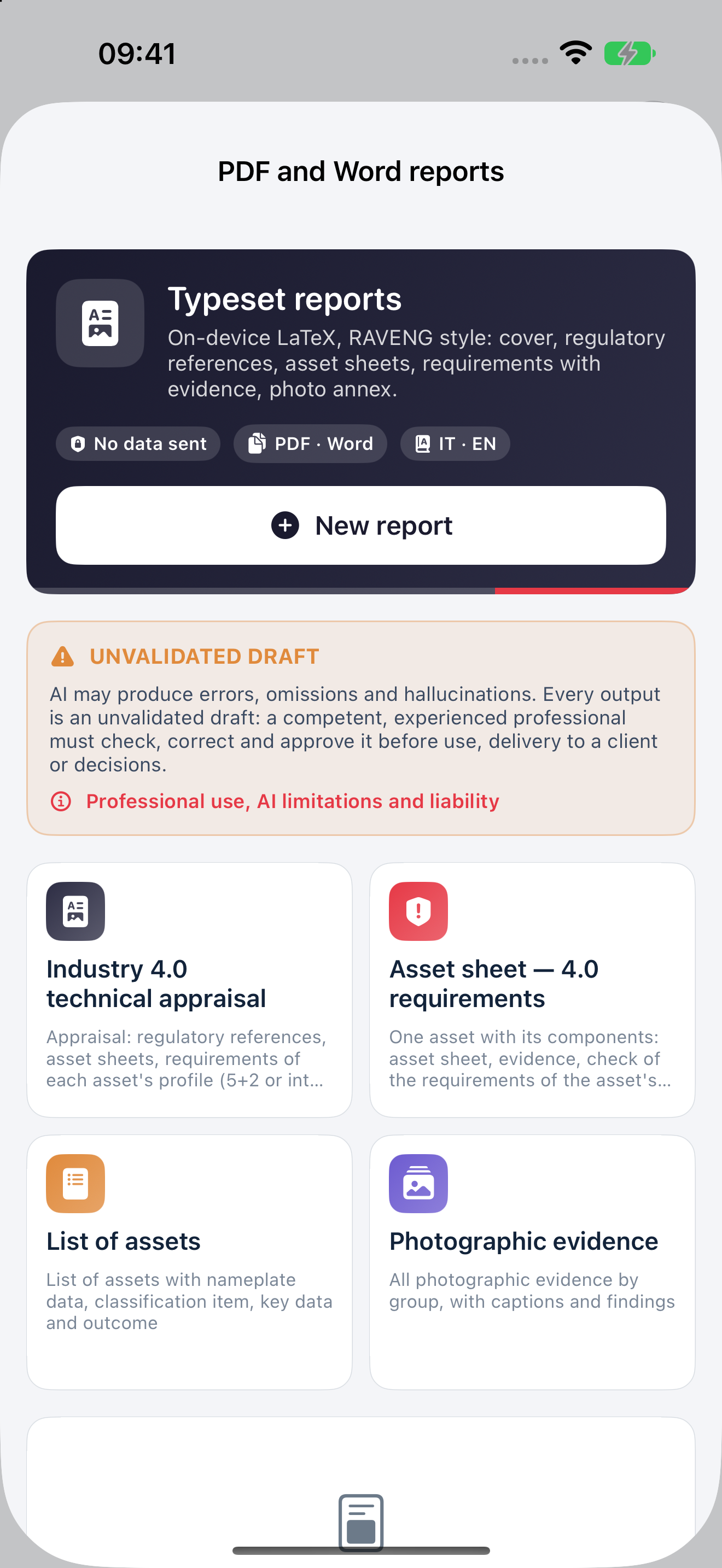
Open “PDF and Word reports” from the panel. Choose an appraisal, asset sheet, asset inventory or photographic dossier, as shown in the available options.
Use the same collected data to prepare documents for different purposes.
What to look for
The screen distinguishes report types and documents already generated.
The inventory and photographic dossier are working documents; they do not replace the technical appraisal.
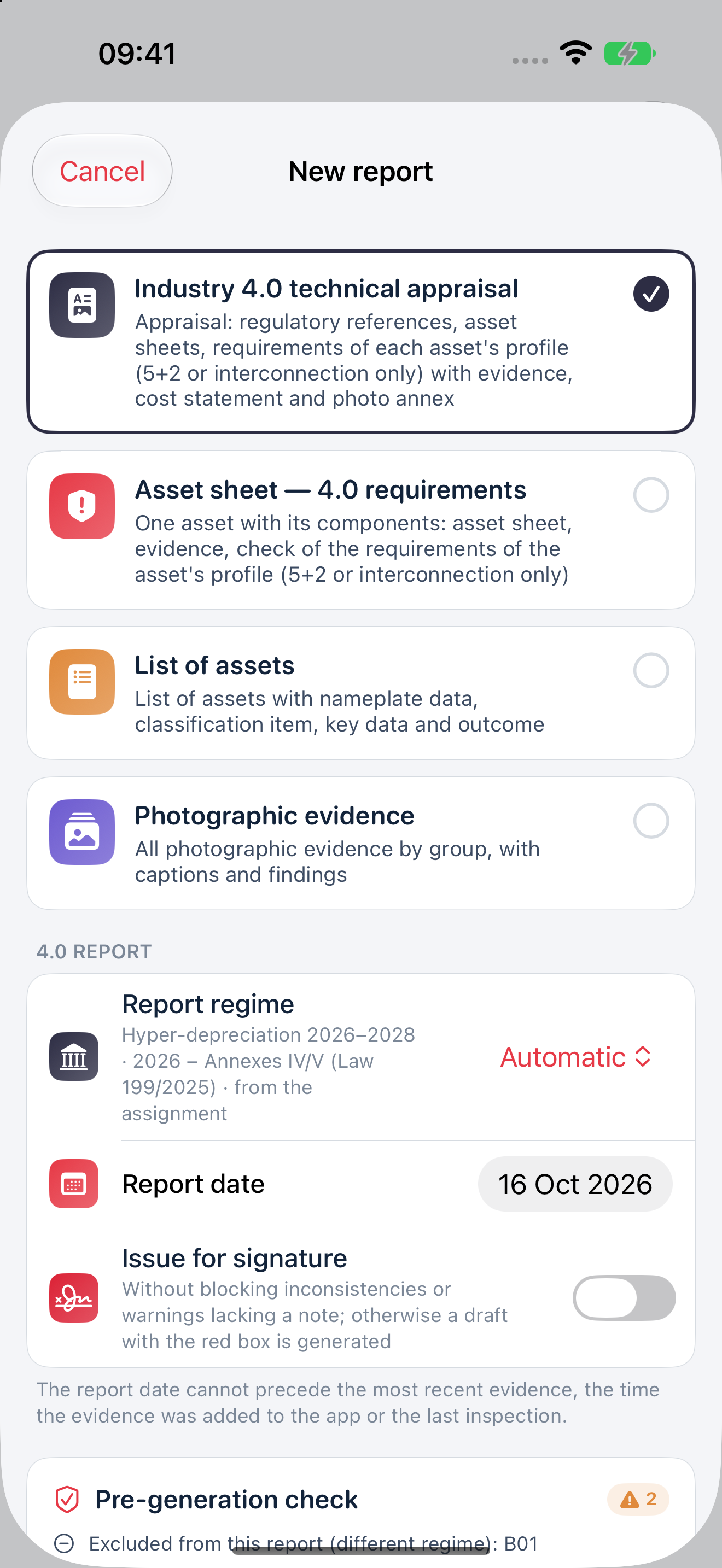
Open New report and check the options.
Tap to enlarge
27 / 30 · Step 27
Italian or English, with your revision
In New report, check the type, scheme, date, language and revision. Enable “Also in Word (.docx)” if you also want an editable file.
Prepare a document for the selected regime: check included and excluded assets and generate separate documents for different regimes.
What to look for
The document language can be selected independently of the app interface.
“Issue for signature” does not sign or approve the document or transfer the professional's responsibility.
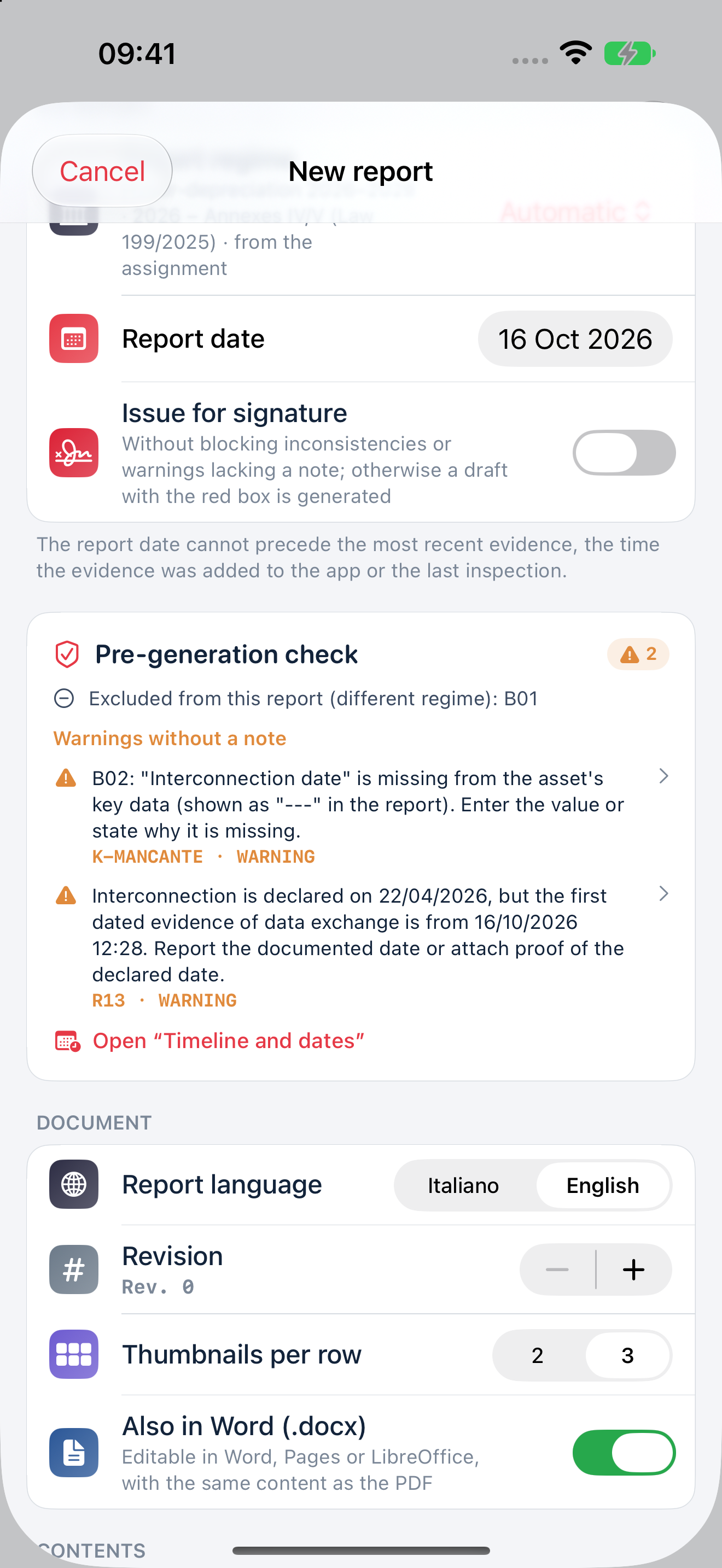
Scroll to content options and the pre-generation check.
Tap to enlarge
28 / 30 · Step 28
Checks and options before the draft
Read “Pre-generation check” and address the flagged points. Scroll through the options and content too: check which documents, photographs, checks and text will be included. Where the workflow permits it, tap “Generate the PDF” or “Generate PDF and Word”.
See limitations and inconsistencies before producing a new version.
What to look for
Generation produces a file you can open in the app; read and address any error messages.
Sections without data may be omitted. A typeset document does not prove completeness or technical correctness.
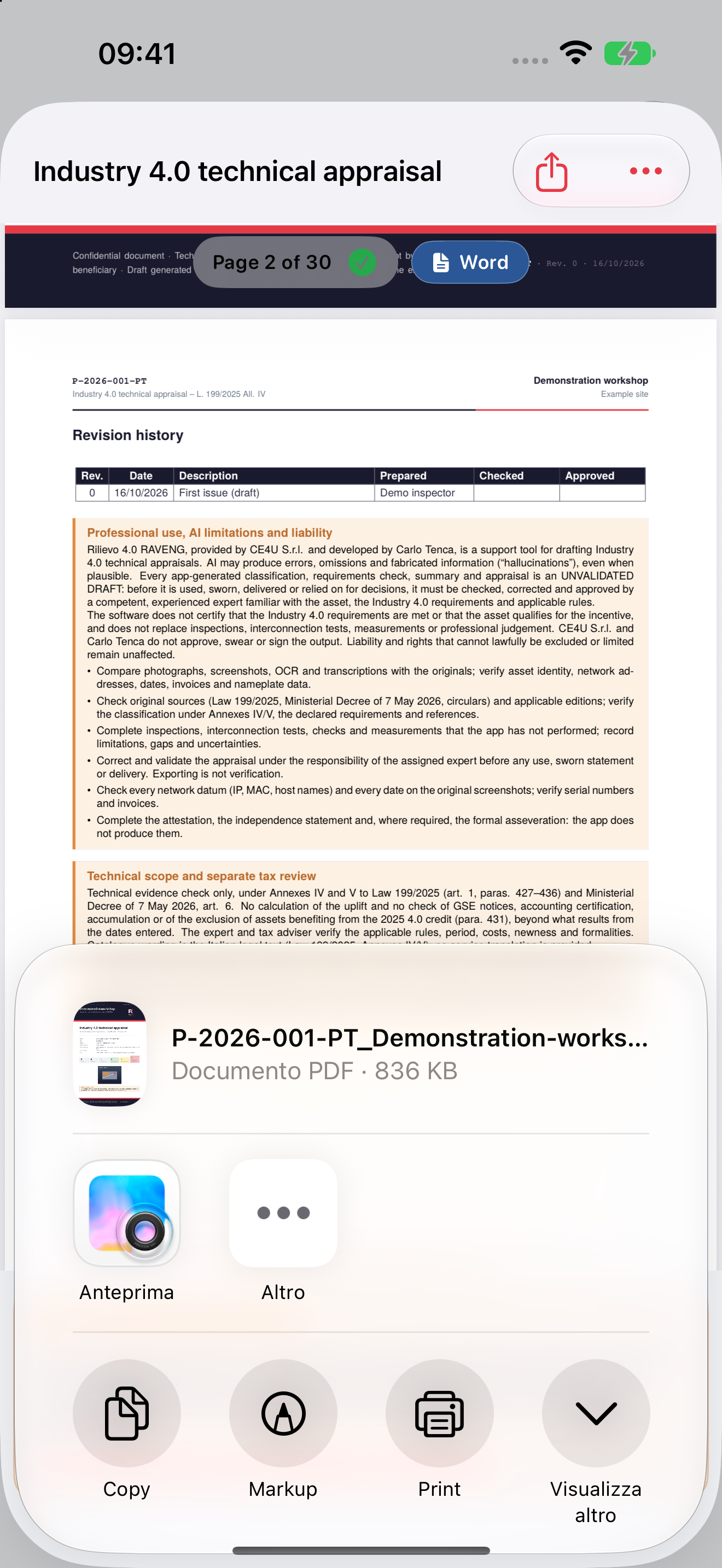
Open the PDF on your iPhone.
Tap to enlarge
29 / 30 · Step 29
Your draft appraisal is on your iPhone
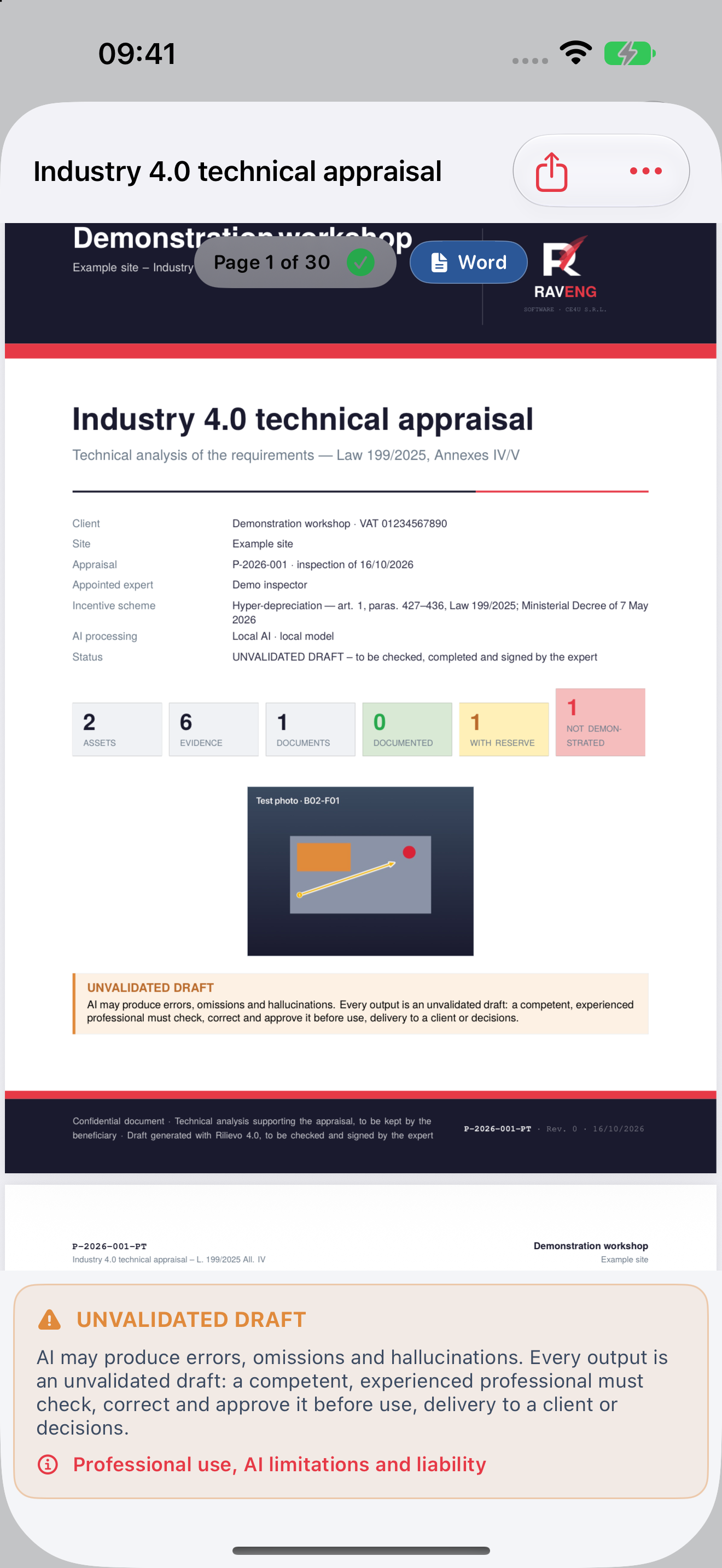
Open the generated report and scroll through the PDF. Check the cover, asset data, requirements, photographs, captions, references, conclusions and warnings.
Move from collected evidence to a document for review, available on the phone.
What to look for
See the PDF actually produced by the app, with the cover, code and revision of the demonstration appraisal.
DRAFT FOR REVIEW. AI may produce errors and hallucinations. An experienced professional must verify, correct and approve it before signature, sworn certification, delivery or use.
Save a copy and complete professional review.
Tap to enlarge
30 / 30 · Step 30
Export, verify and retain
In the report, tap “Share PDF draft” and choose an authorised destination. The menu also offers “Export PDF to Files” and, if created, “Export Word to Files”. Use “Export dossier” from the panel.
Take the work into review and retain its supporting material.
What to look for
Identify the destination options. After saving, reopen the files and check the expected revision and selected materials.
After editing Word, update the table of contents and fields, then check the PDF again. Exporting a ZIP is not an automatic restore of the editable archive. iOS sharing menus follow the device language, which may differ from the app language.
Try the workflow with your own DEMO case, then continue with the full guide.
You can also use the menu to jump directly to a feature.
Every screenshot, at a glanceOpen the visual index and choose a step.
This guide shows the workflow. The complete guides help with installation, choosing your AI route and configuring Codex Cloud, including checks and solutions to common problems.
The 14-day free trial is available to Apple-eligible accounts once per subscription group. It then renews automatically at the full price of the selected plan: on the Italian storefront, €29.90 per month or €299 per year, with the entire year charged in advance. Cancel at least 24 hours before the trial ends to avoid the first charge. Local prices, availability and actual conditions are those shown by Apple at confirmation. API and Cloud services are separate.
ChatGPT/Codex accounts and usage, API credits, search, GitHub services and connectivity are separate from the app subscription. AI feature availability also depends on the device, provider and configuration. Distribution excludes China mainland.